
CH3_File Manager_NcEditor
today
2026-06-17
local_offer
CNC, CADCAM
visibility
174
3.File Manager
Explains the actions of creating, deleting, modifying, and searching NC files, as well as operating categorized folders.
3.1 Open File
3.1.1 Open File
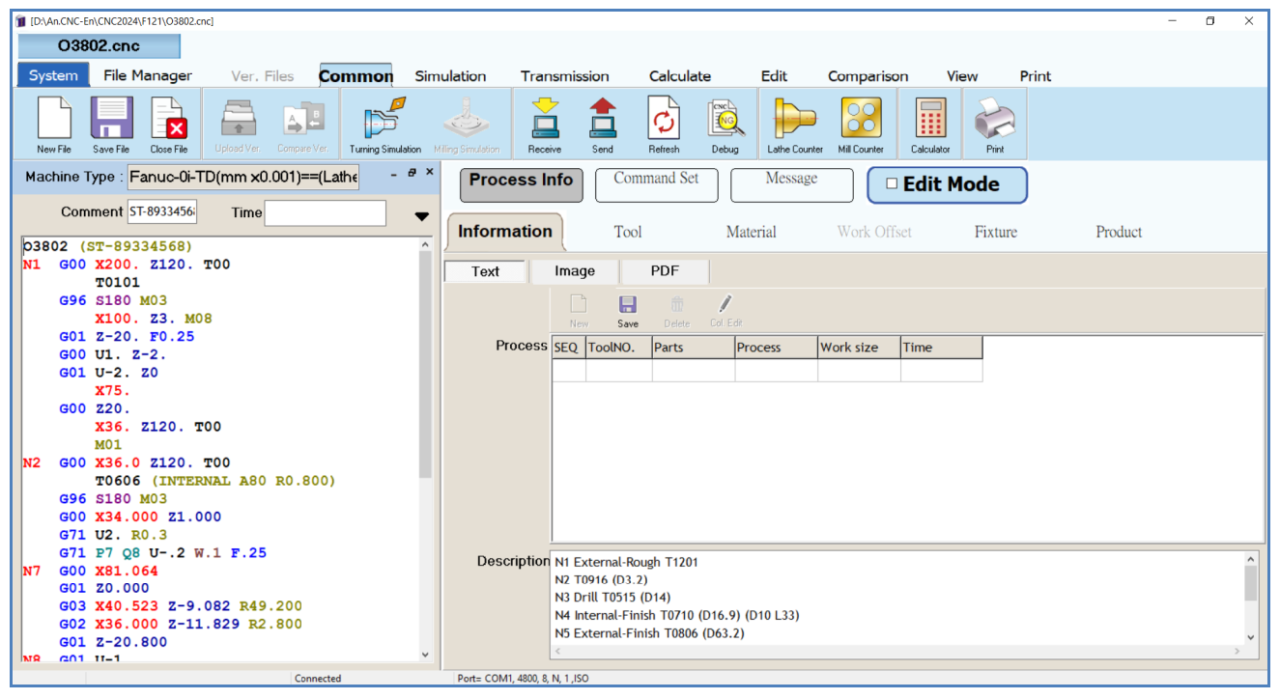
Example: Open F121. O3802.CNC.
(1) Click the 【 File Manager 】 tab.
(2) Double click the 【 F121 】 folder to enter the folder.
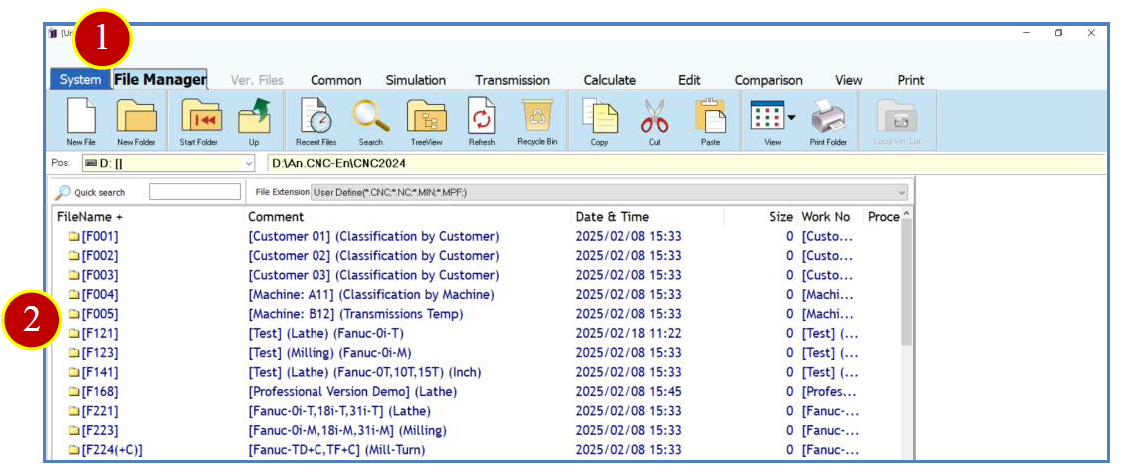
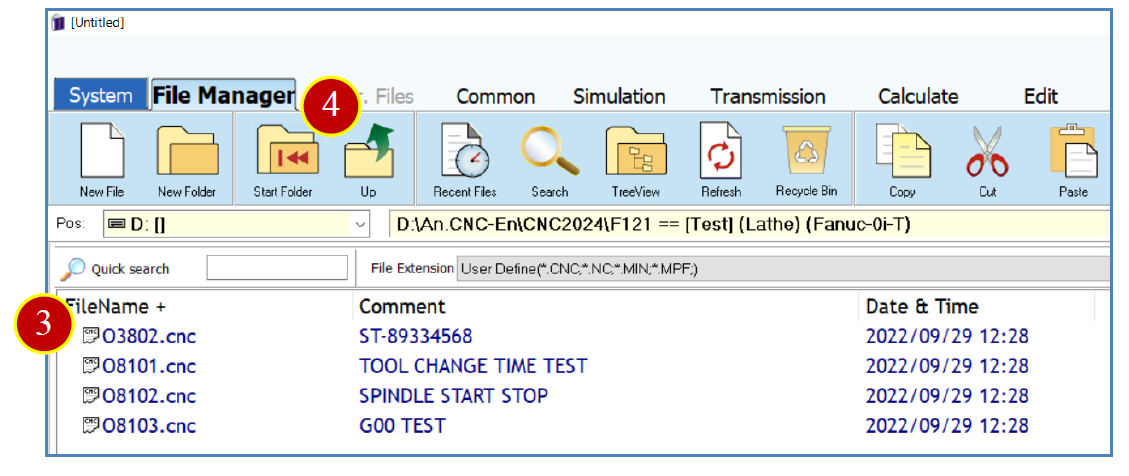
(3) Double click the 【 O3802.CNC 】 file to open the program and enter editing mode.
(4) Click 【 Up 】 to return to the parent folder.
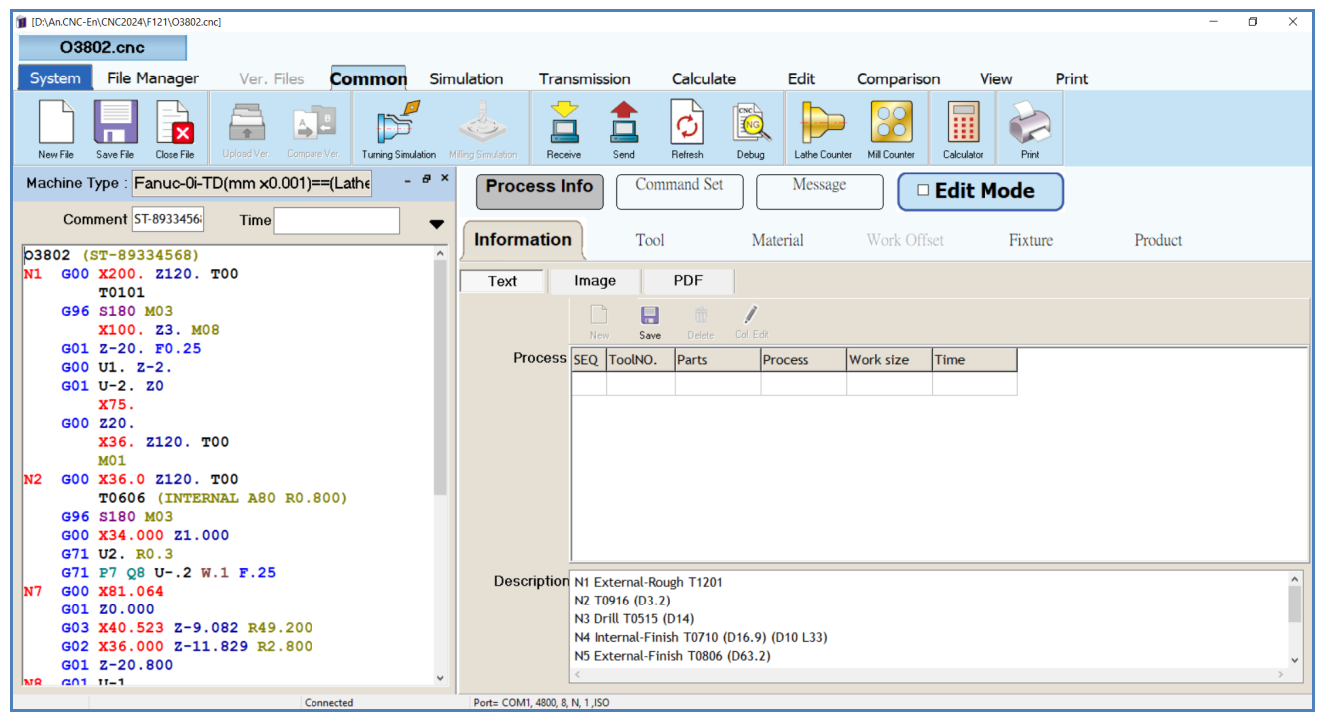
(5) Program Editing Screen.
3.2 Open Recent Files
There are two ways to open recent files
3.2.1 Open Recent Files (Method
Example: Open the last used file.
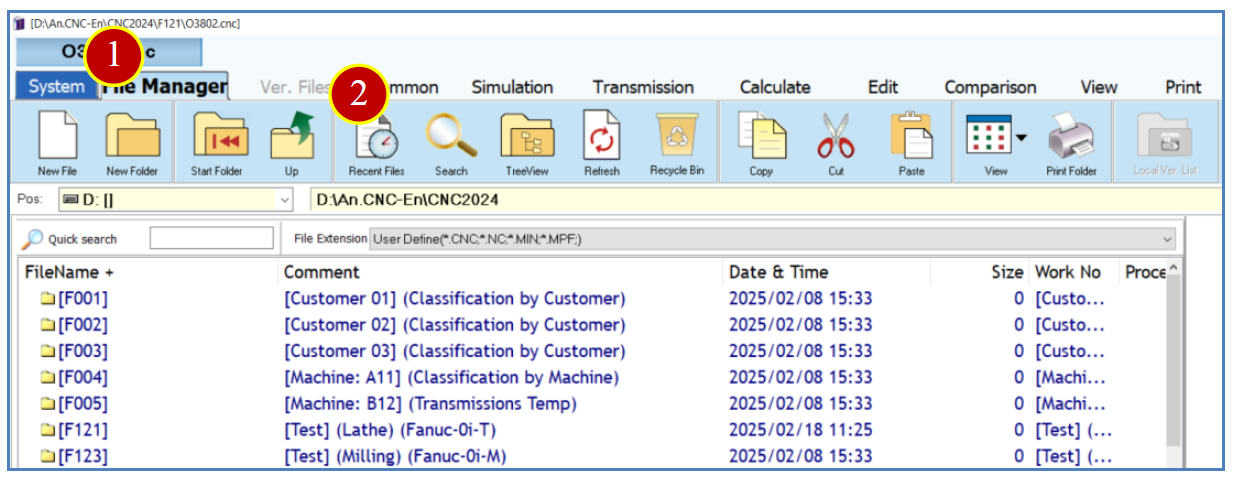
(1) Click the 【 File Manager 】 tab
(2) Click 【 Recent Files 】
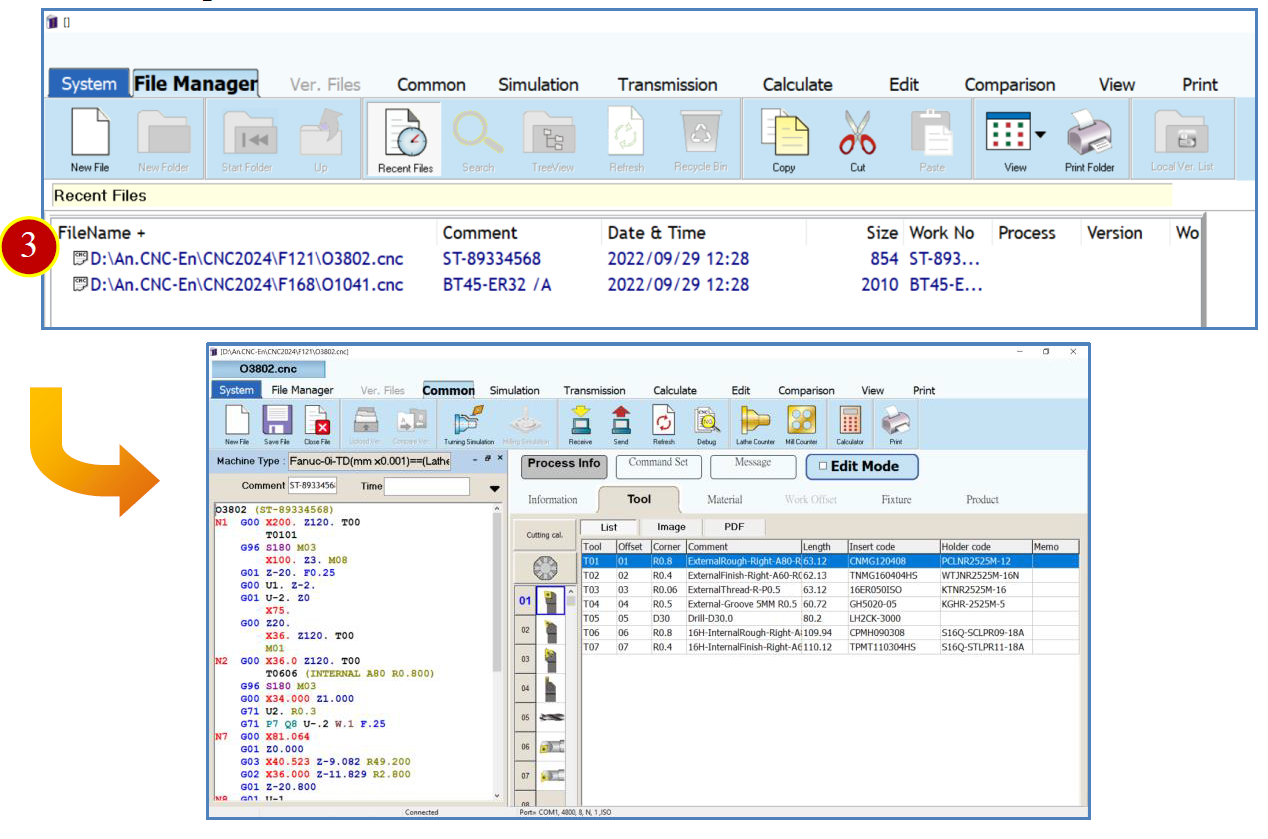
(3) Double click the previous file name to open the program and enter editing mode. Only the last 30 valid files opened are displayed.
For example: O3802.CNC
3.2.2 Open Recent Files (Method 2)
Example: Open the last used file.
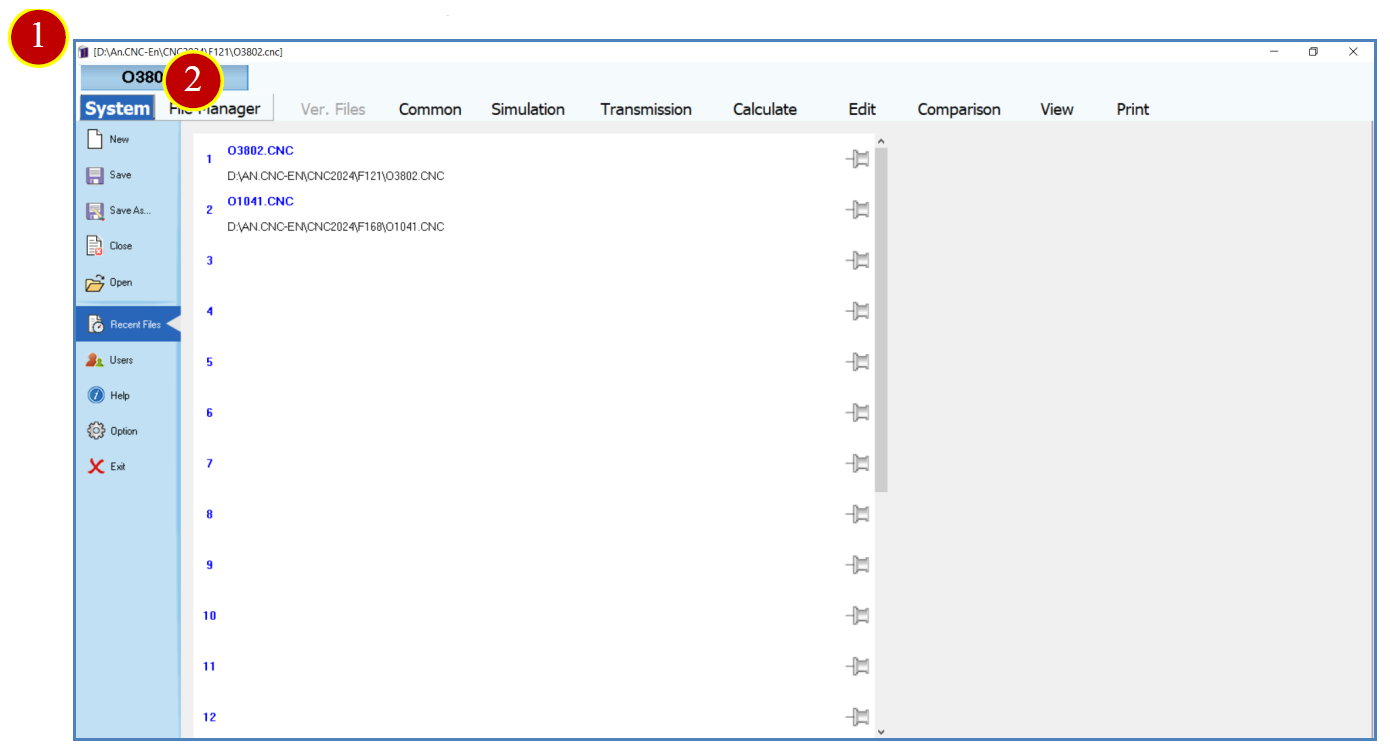
(1) Click the system menu.
(2) Click the file name to open the program and enter editing mode.
※Only the last 9 valid files opened are displayed
3.3 Close File
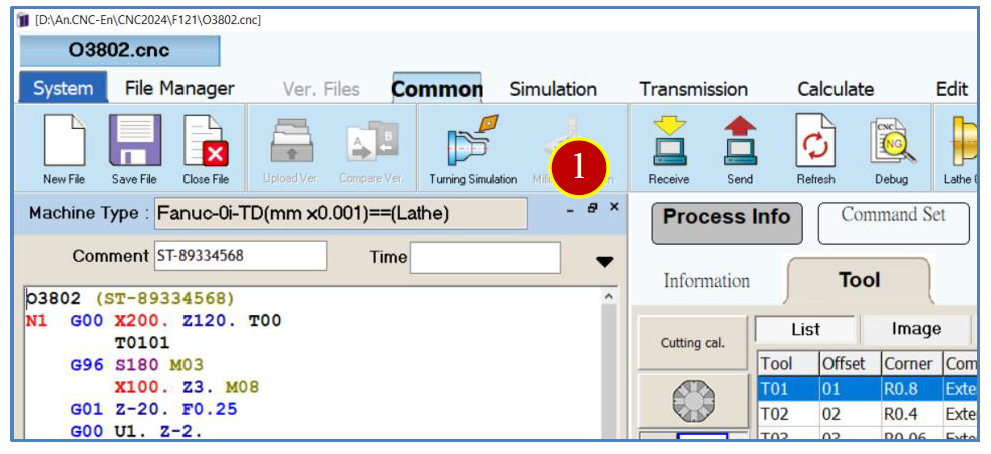
There are two methods to close a single file.
3.3.1 Close File (Method 1)
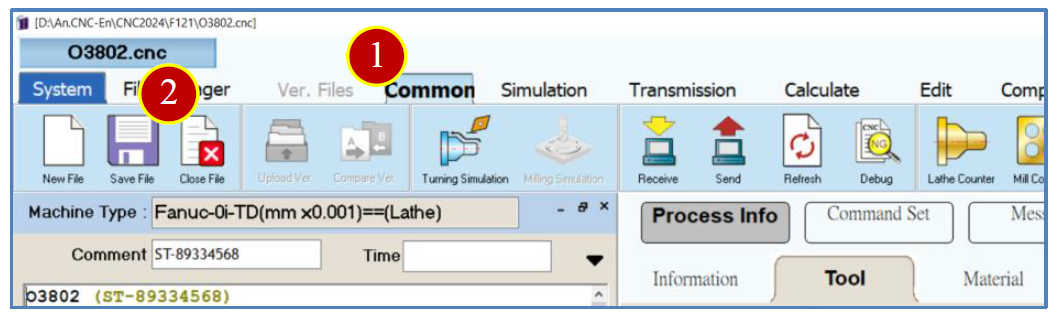
(1) Click the 【 Common 】 tab
(2) On the toolbar, click 【 Close File 】 to close the file.
3.3.2 Close File (Method 2)
(1) On the file window's zoom bar, click 【 X 】 to close the file.
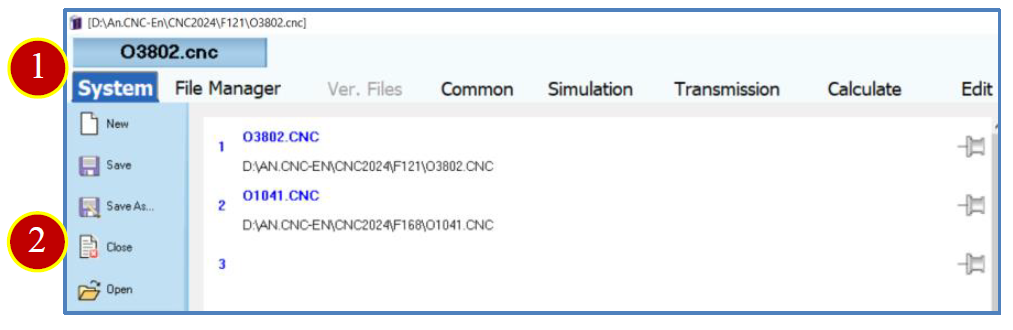
3.3.3 Close File (Method
(1) Click the system menu.
(2) Click 【 System 】 【 Close 】
The screen will return to 【 File Manager 】
3.4 Rename and Annotation
To rename a file or folder, right click the file or folder to modify, and select the corresponding function for the modification.
3.4.1 Rename File
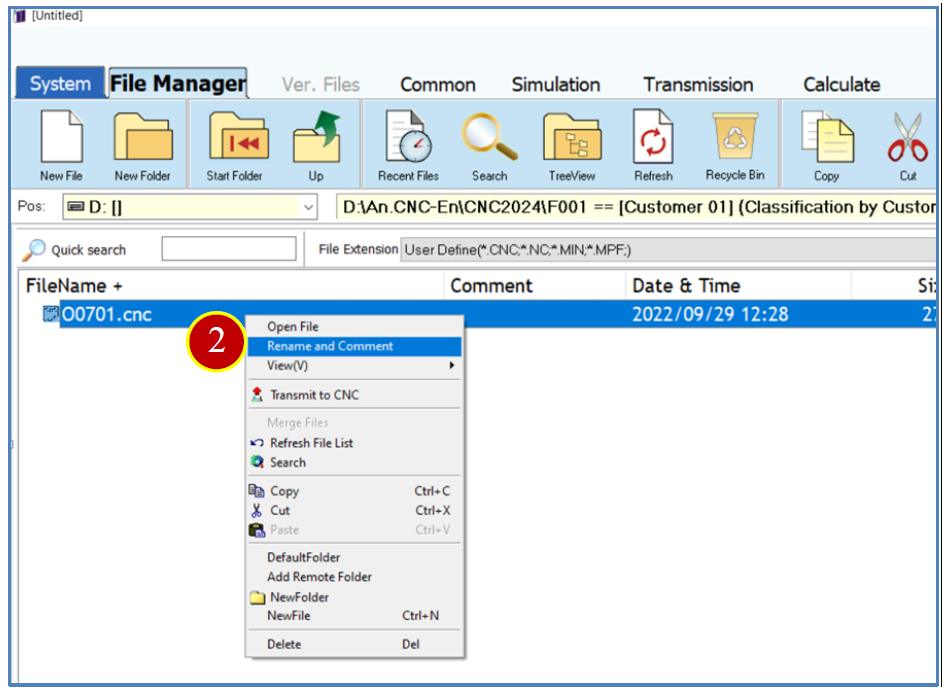
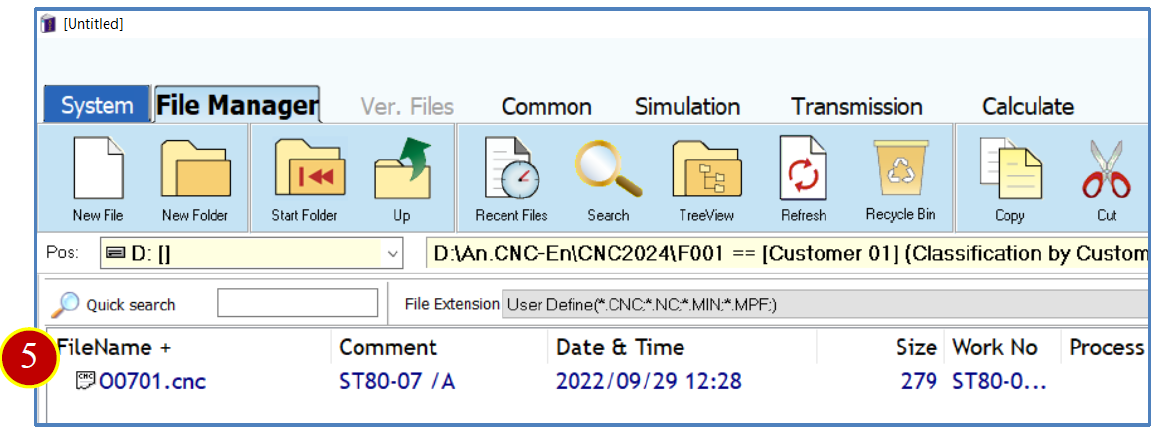
Example: Change the name of O0701.CNC to O0707.CNC.
(1) Right click the 【 O0701.CNC 】 file

(2) Click 【 Rename and Comment 】
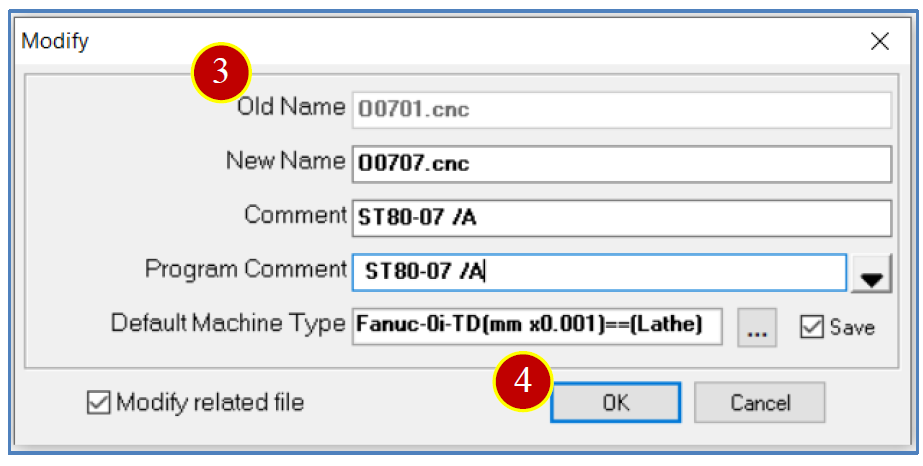
(3) Enter the new file name, annotation, and default machine type.
Example: 【 O0707.CNC 】、【 ST80 07 /A 】、【 Fanuc 0iT(mmx0.001)==( Lathe 】
(4) Click 【 OK 】
(5) After completion, the new file name will be displayed.
3.4.2 Rename Folder
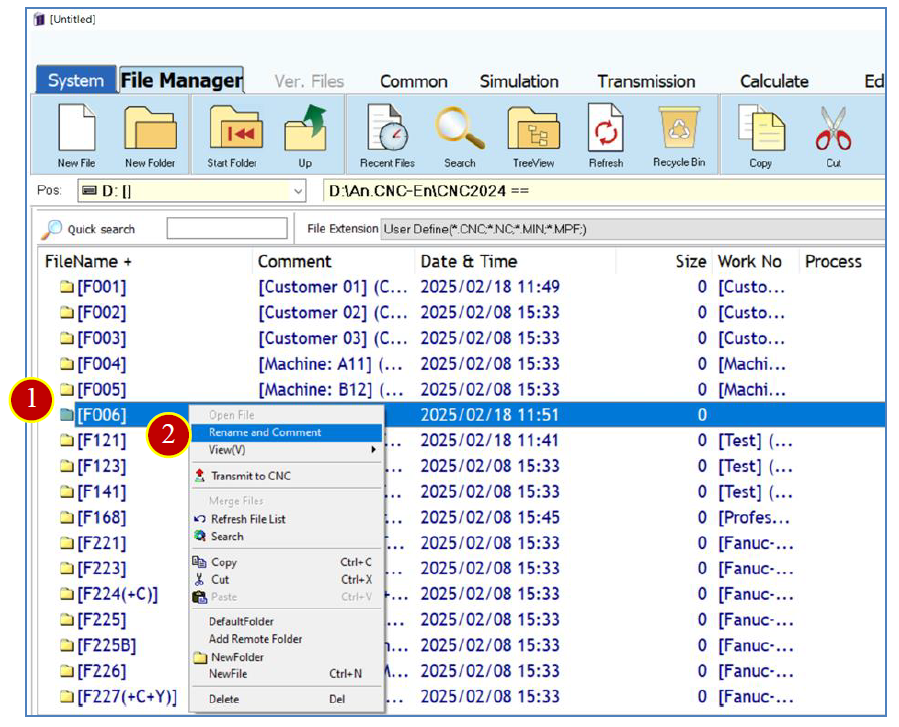
Example: Change the name of folder F006 to F013.
(1) Right click the 【 F006 】 folder.

(2) Click 【 Rename and Comment 】
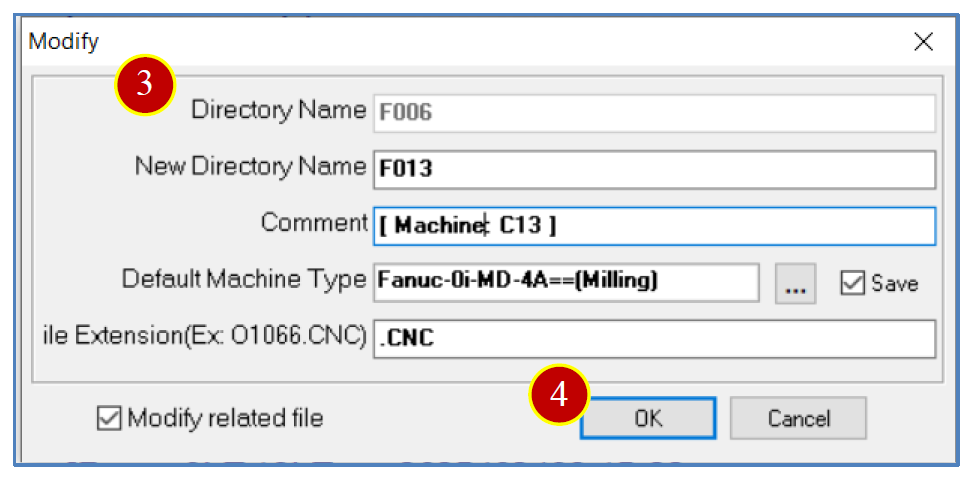
(3) Enter the new folder name, comment, default machine type, and file extension.
Example: 【 F013 】 【 [ Machine: C13 】 【 Fanuc 0i MD==(Milling Machine) 】 【 .CNC 】
(4) Click 【 OK 】
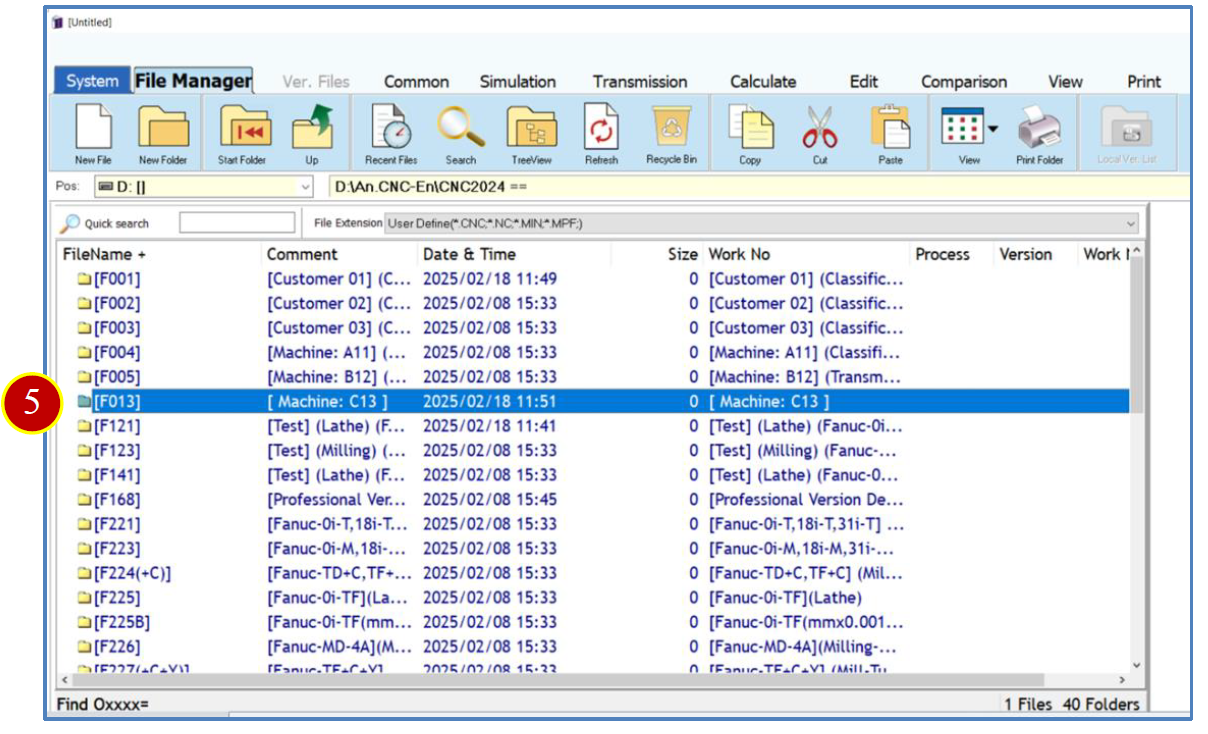
(5) After completion, the new file name will be displayed.
3.5 Search Files
When there are too many files to quickly locate the desired one, or when searching by specific date or comment, you can use the following search methods to find files.
3.5.1 Quick Search
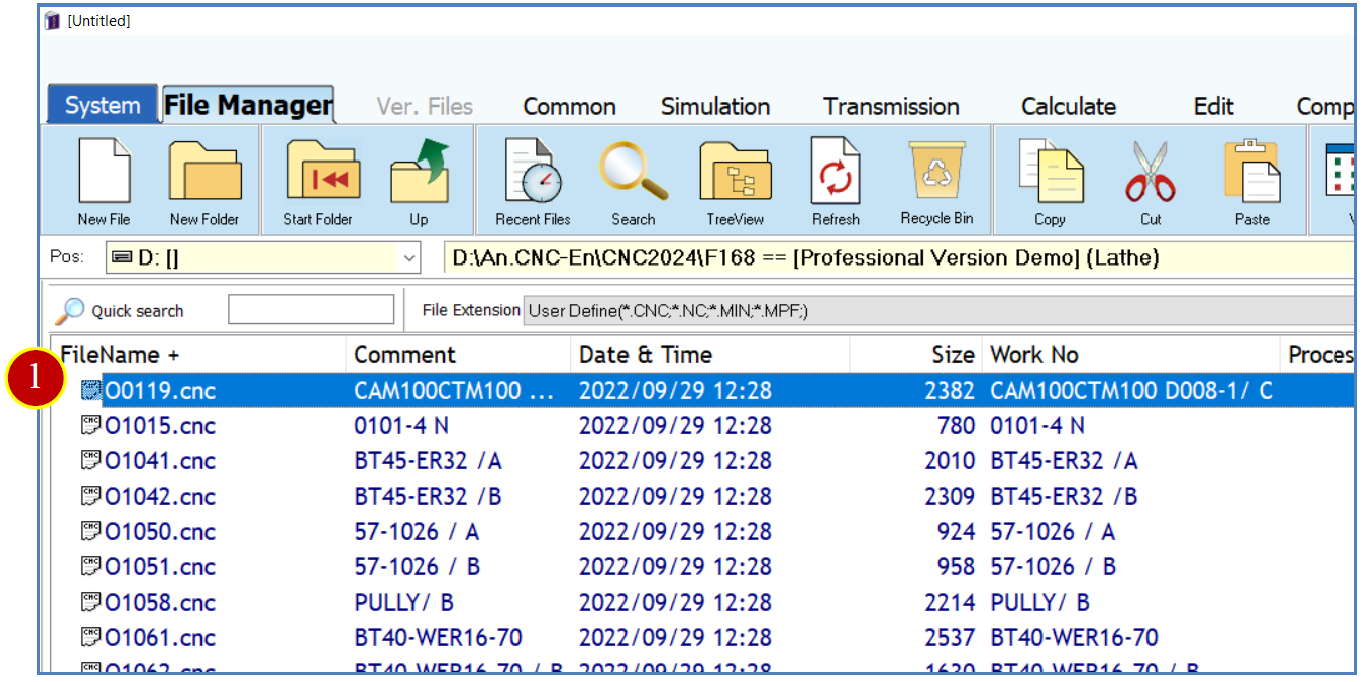
Example: Quickly search for files related to “KPU” in folder F168.
(1) Double click the 【 F168 】 folder to enter it.
After entering, all files will be displayed.
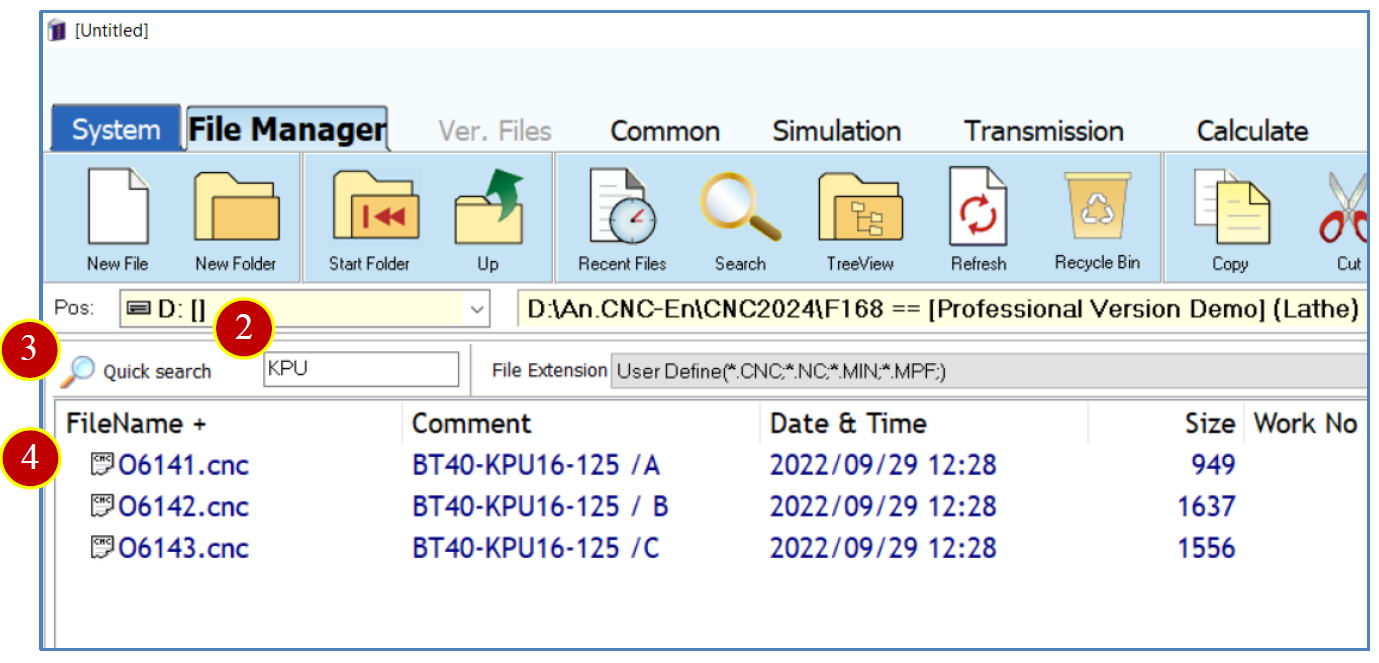
(2) Enter KPU in the quick search field.
(3) Click 【 Quick Search 】
(4) The search results will be displayed.
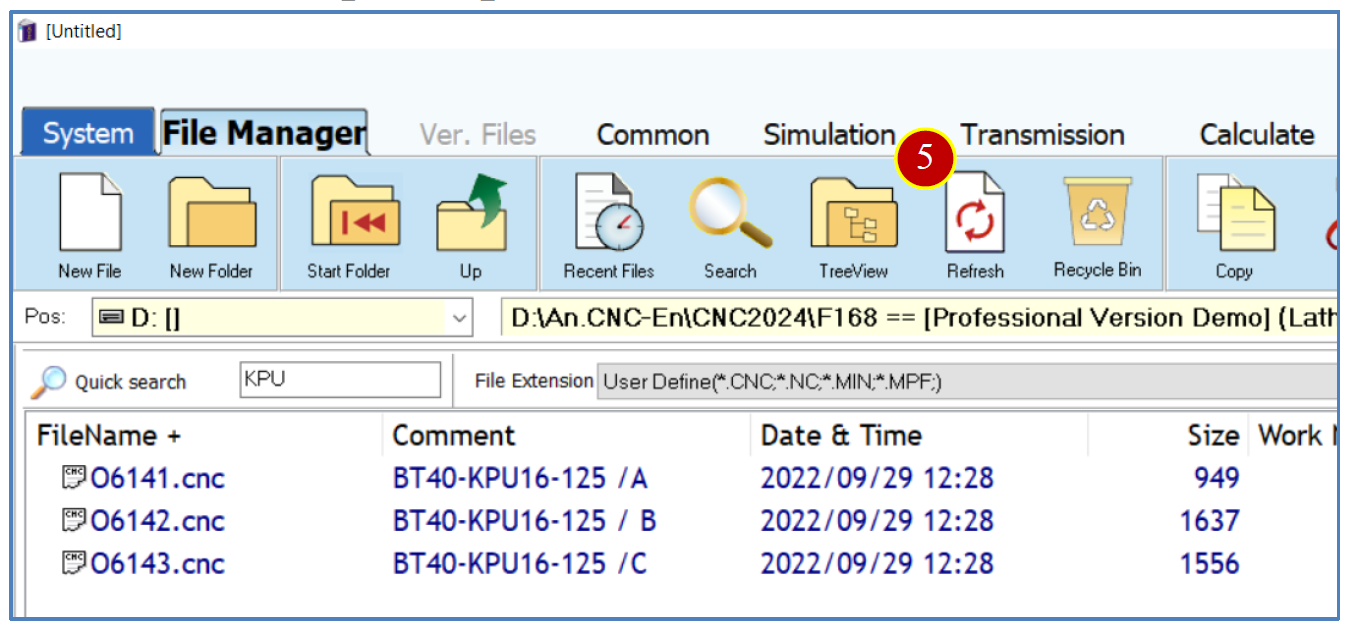
(5) After the search, if you want to display all file data from before the search:
Method 1: Click 【 Refresh 】
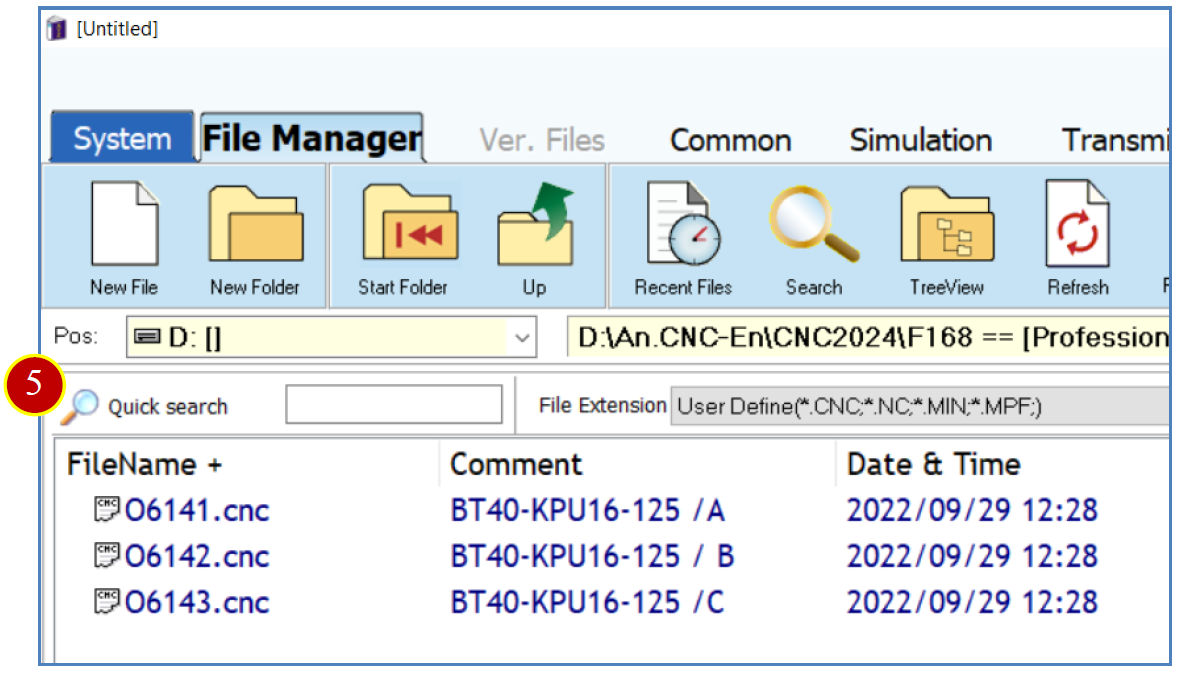
Method 2:
(a) Clear the text in the quick search input box.
(b) Click 【 Quick Search 】 again.
3.5.2 Search Files Directly by Entering Program O Number
Example: Search for the file “O6143” in folder F168.
(1) Double click the 【 F168 】 folder to enter it.
In the file list, first click on a file to place the cursor in the file name column on the right.
Example : Click O1041.CNC.
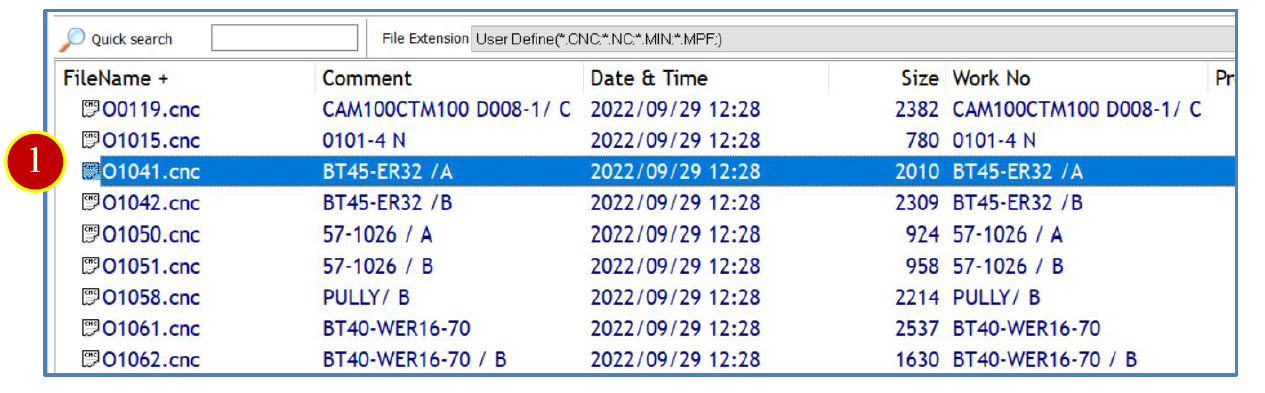
(2) Press the [O] key (uppercase letter O), and the status bar below 【 Search Oxxxx= 】 will change to 【 Search Oxxxx= O 】
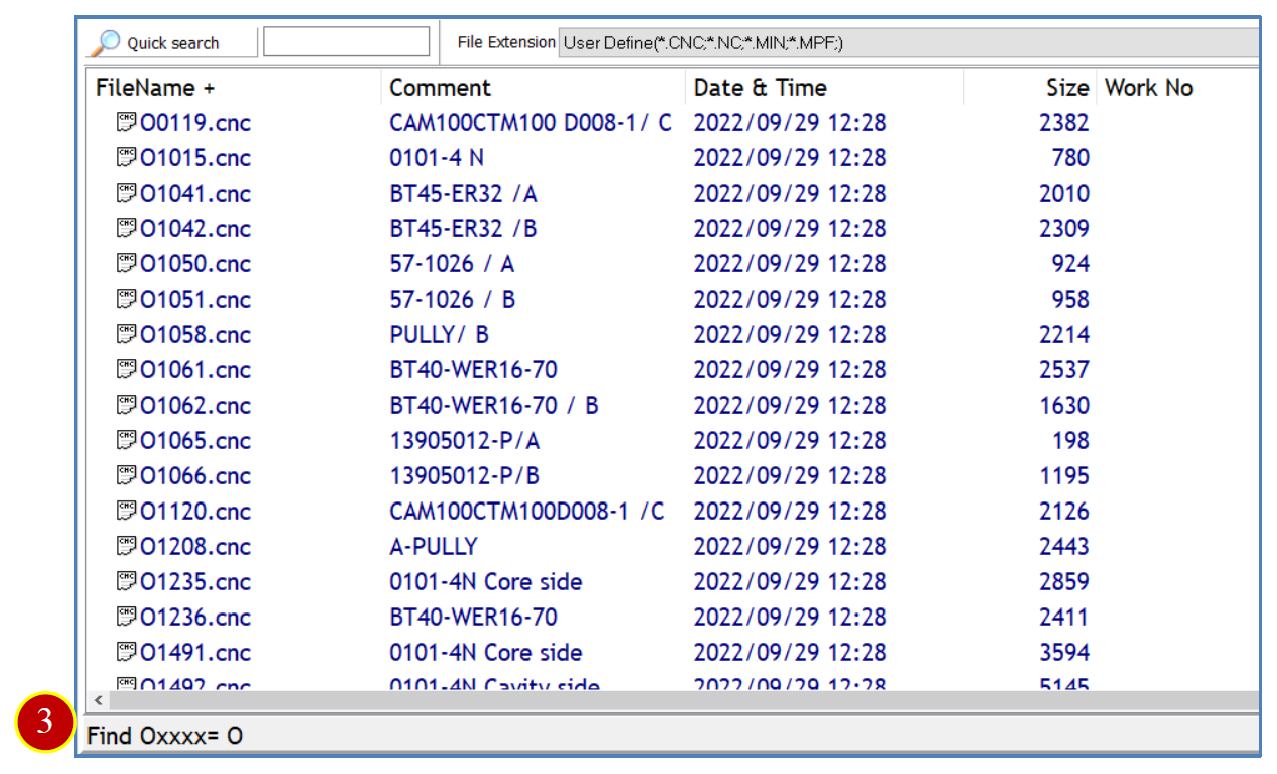
(3) Press the number [6], and the status bar will change to 【 Search Oxxxx= O6 】 . The file manager will automatically filter files starting with O6.
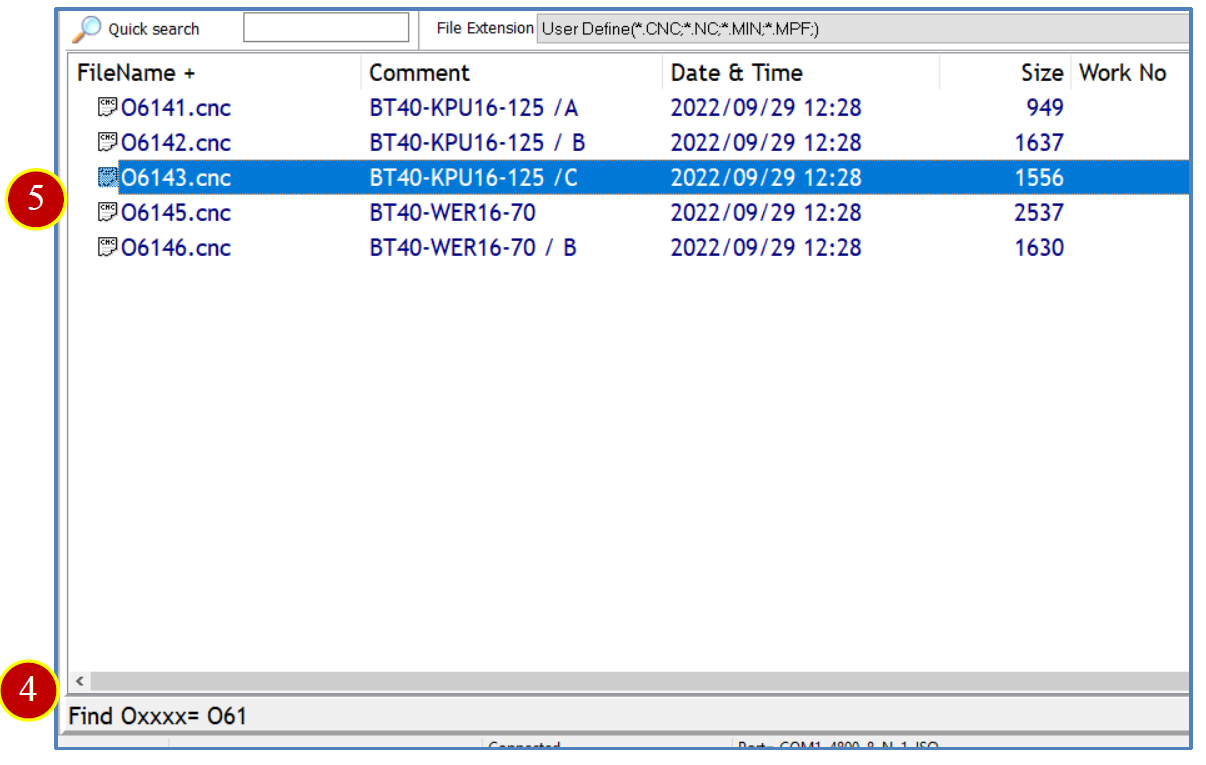
(4) Then press [1], and the status bar will change to 【 Search Oxxxx= O61 】 . The file list will display files starting with O61.
※ Press the letter [O] again, and the status bar will return to 【 Search Oxxxx= O 】 , allowing you to search for files again.
(5) Move the cursor to O6143 and press 【 Enter 】 to open the file.
3.5.3 Detailed File Search
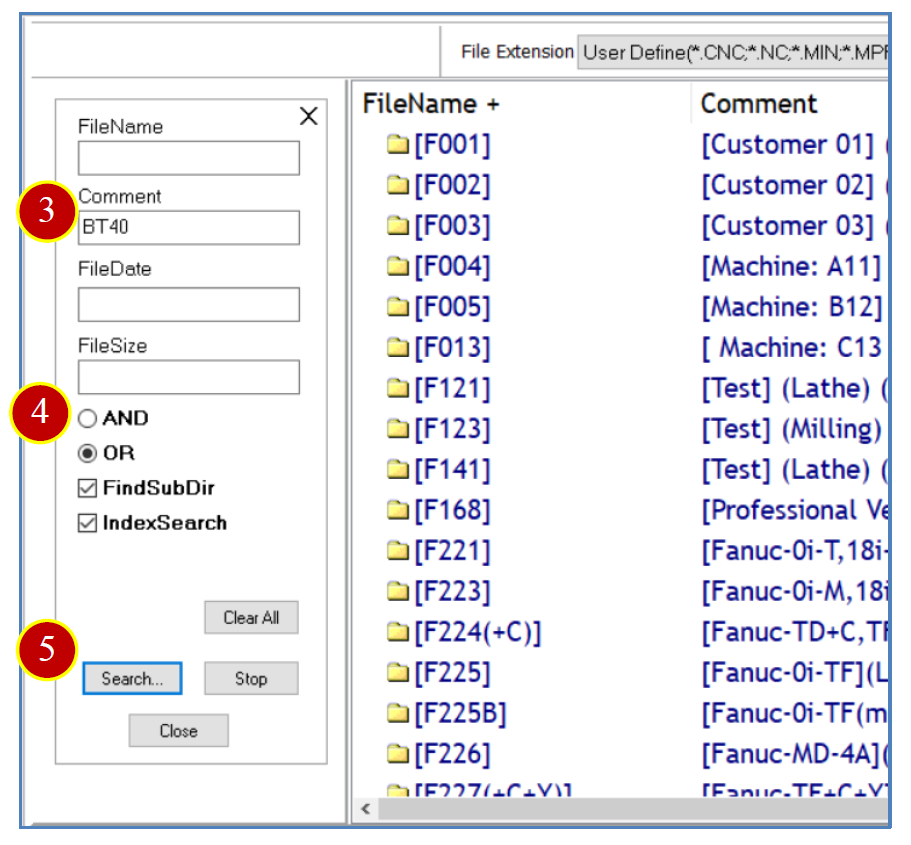
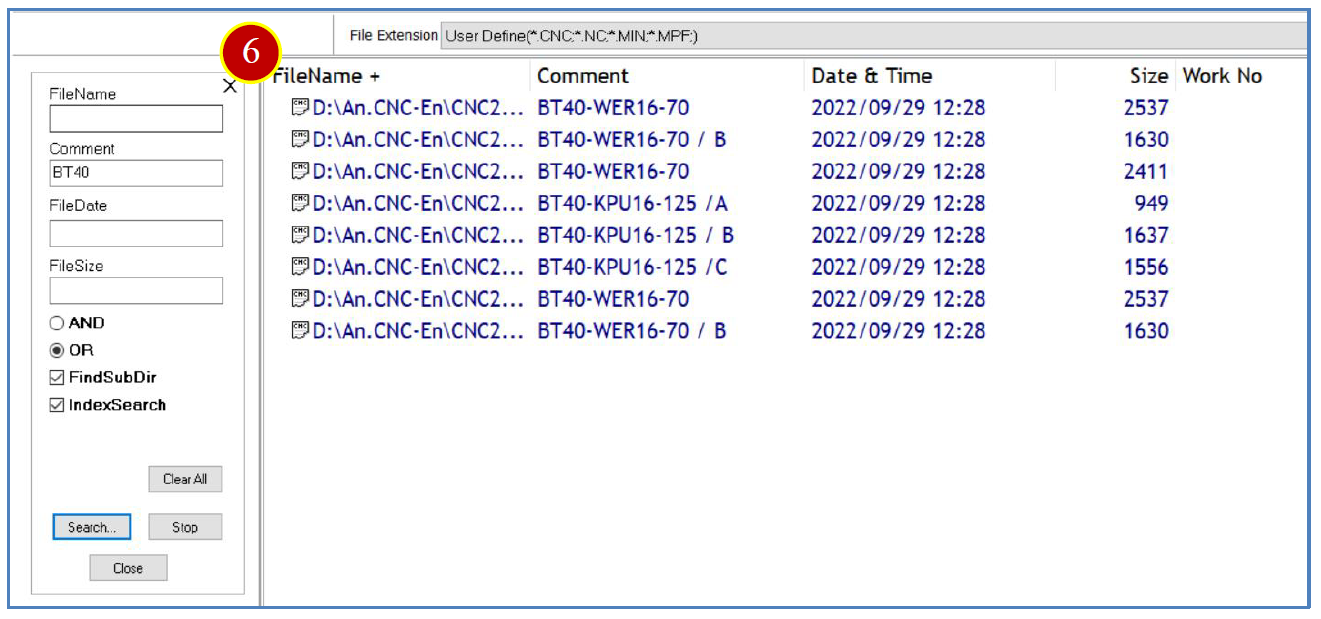
Example: Search for files that contain "BT40" in their comments.
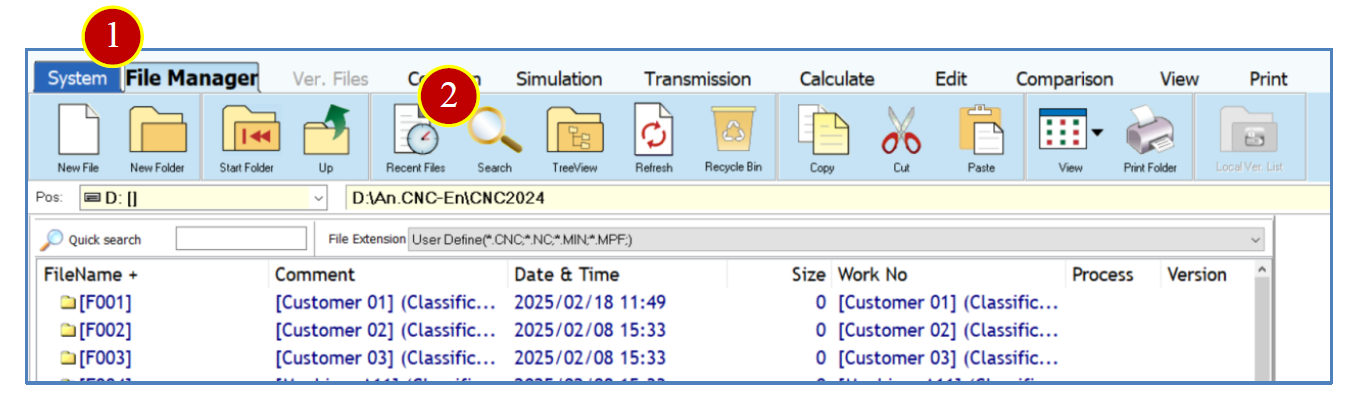
(1) Click the 【 File Manage r 】 tab.
(2) Click 【 Search 】
(3) Enter the search criteria.
Example: Enter "BT40" in the comment field.
(4) Set the search criteria and check the options for 【 Find Sub Di rectories 】 and 【 Index Search 】
(a) AND: All search criteria must
(b) OR: Any one of the search criteria must
(c) Search Subdirectories: Allows searching of files in
(d) Index Search: Allows searching of indexed
(5) Click 【 Search 】
(6) The file list will display the files that match the search criteria.
3.6 New File s
Add and create blank CNC files.
3.6.1 New Files
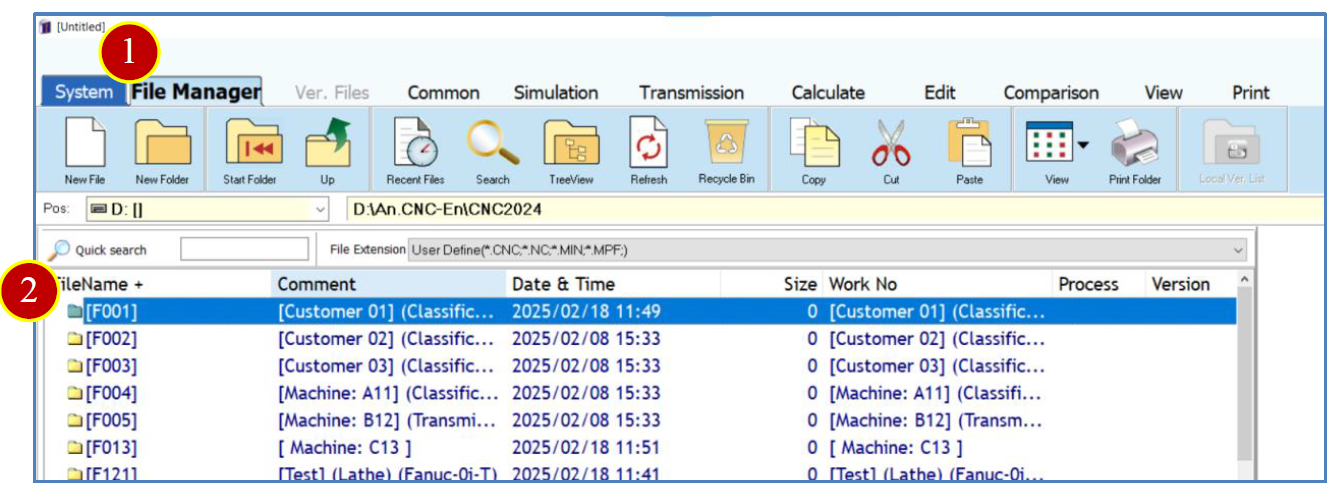
Example: Add a file in the F001 folder.
(1) Click the 【 File Manage r 】 tab.
(2) Double click 【 F001 】 to enter the folder.
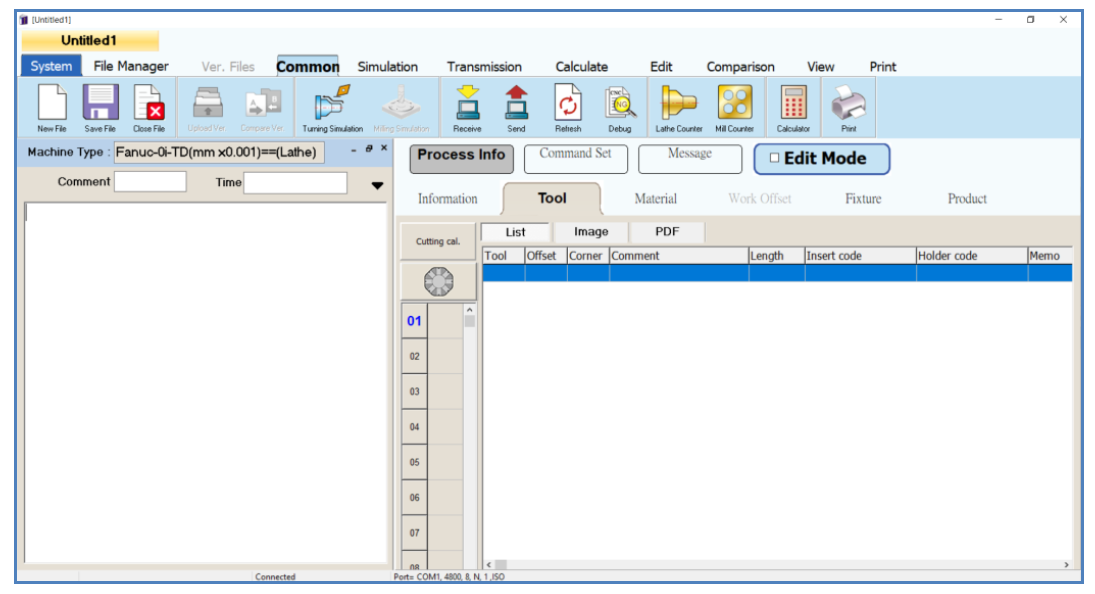
(3) Click on 【 New File 】
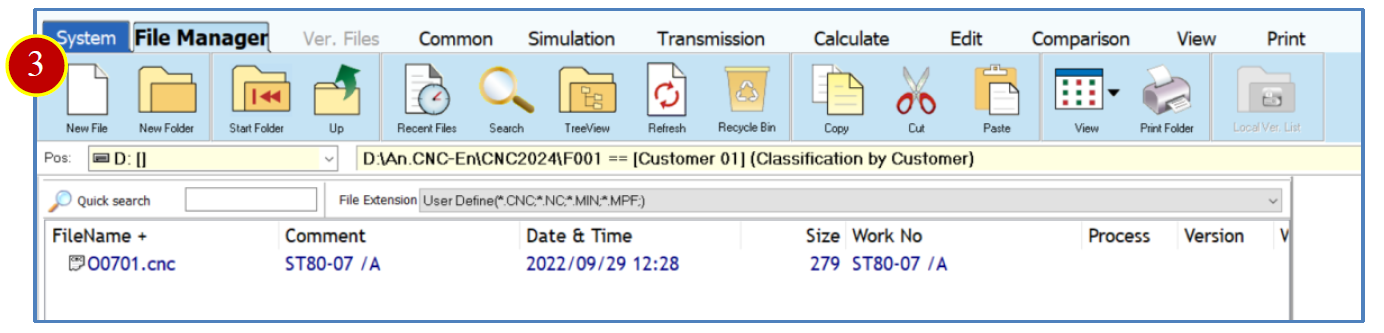
(4) A blank CNC file will be displayed.
3.7 Add Folder
Add folders to categorize CNC files using folders.
3.7.1 Add Blank Folder
Example: Add the F111 folder.
(1) Click on the 【 File Manage r 】 tab.
(2) Click on 【 New F ile 】
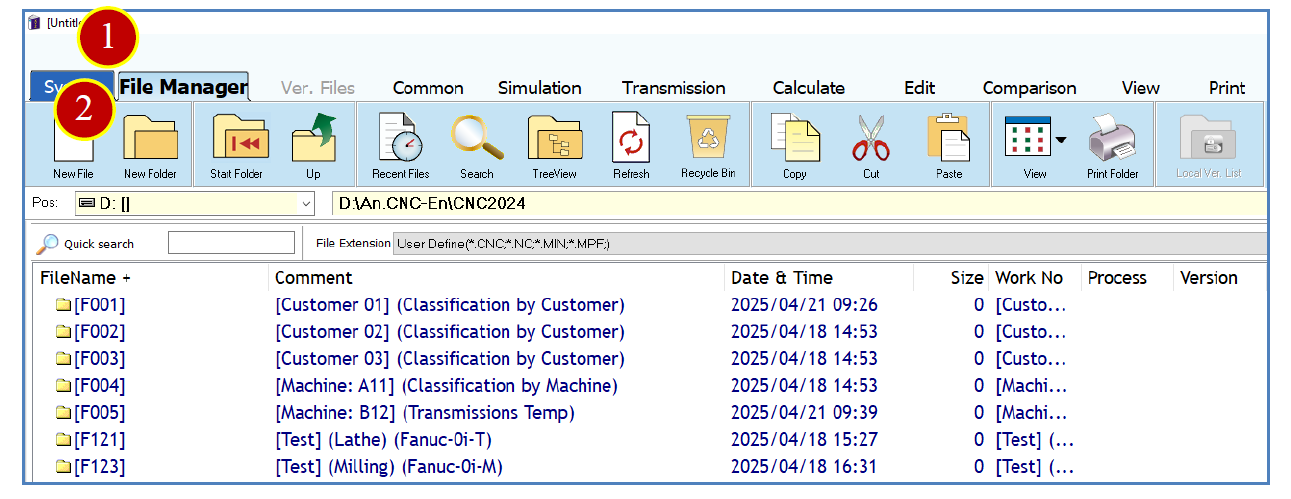
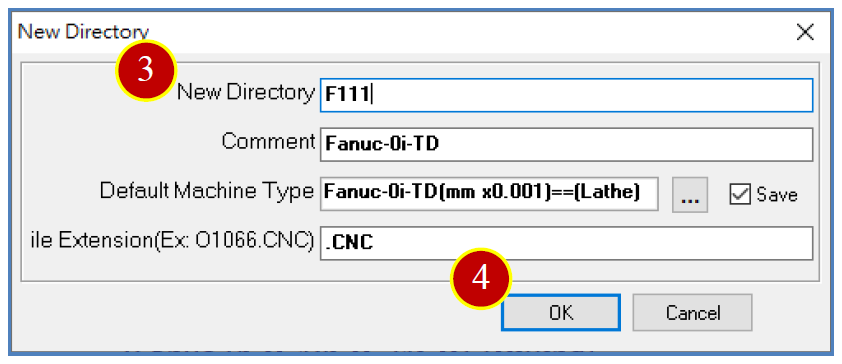
(3) Enter the new folder name "F111" and the drawing number comment.
Example: Fanuc 0i TD.
(4) Click 【 OK 】
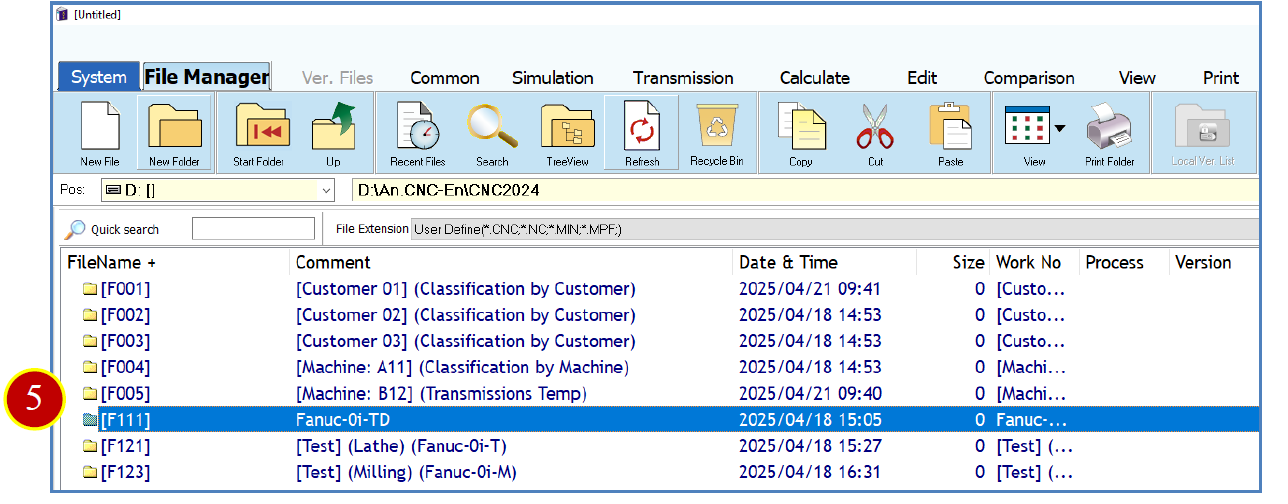
(5) The file list will display the newly added folder.
3.8 Delete Files
3.8.1 Delete Files
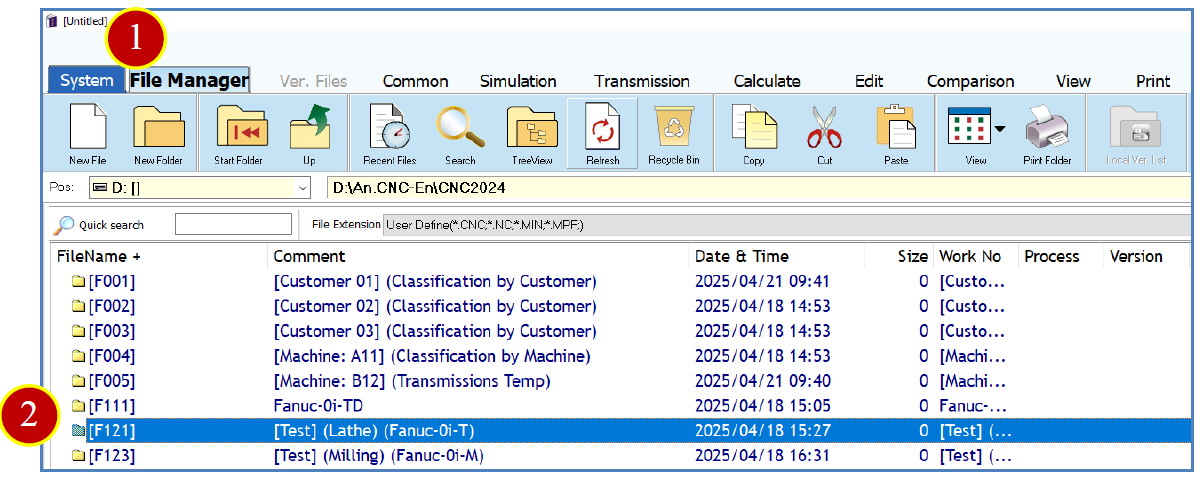
Example: Delete the O8103.CNC file in folder F121.
(1) Click on the 【 File Manage r 】 tab.
(2) Double click 【 F121 】 to enter the folder.
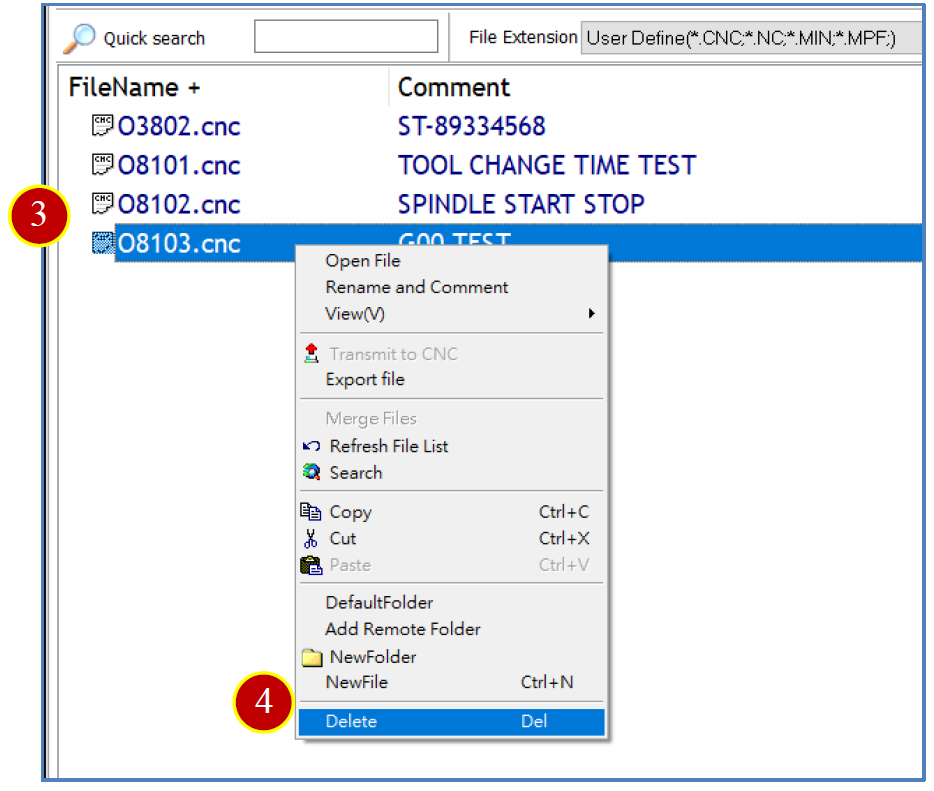
(3) Right click on the O8103.CNC file. 。

(4) Click on 【 Delete 】
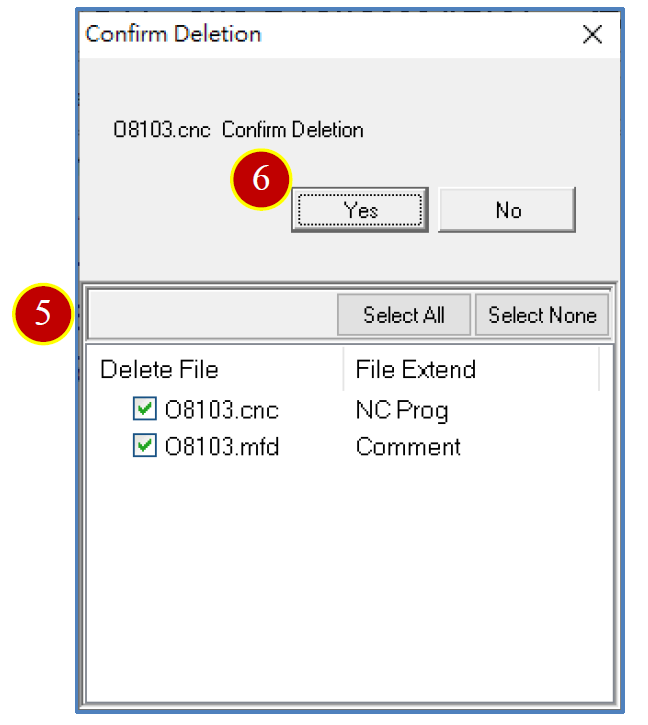
(5) A confirmation prompt will appear asking, "Are you sure you want to delete?" Confirm whether to delete the file and its associated files.
Check the files you wish to delete.
(6) Click 【 Yes 】
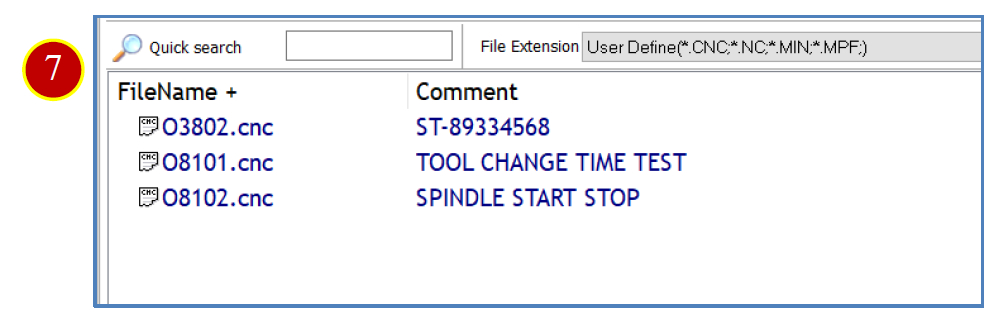
(7) The file list will display that the file has been deleted.
3.9 Delete Folder
3.9.1 Delete Folder
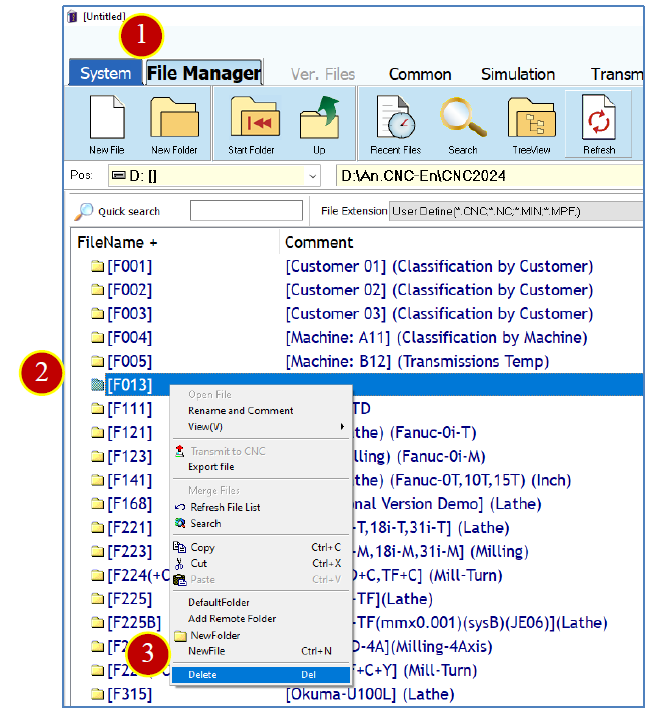
Example: Delete the F013 folder.
(1) Click on the 【 File Manage r 】 tab.
(2) Right click on the 【 F013 】 folder.

(3) Click on 【 Delete 】
※ If the folder contains CNC files, the folder cannot be
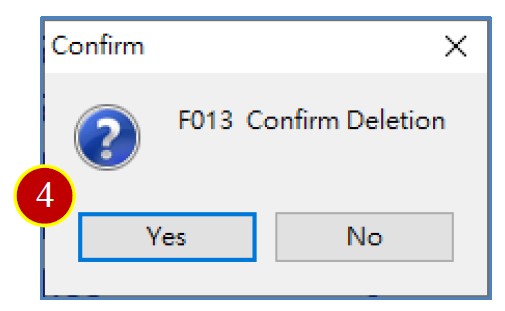
(4) Click 【 Yes 】
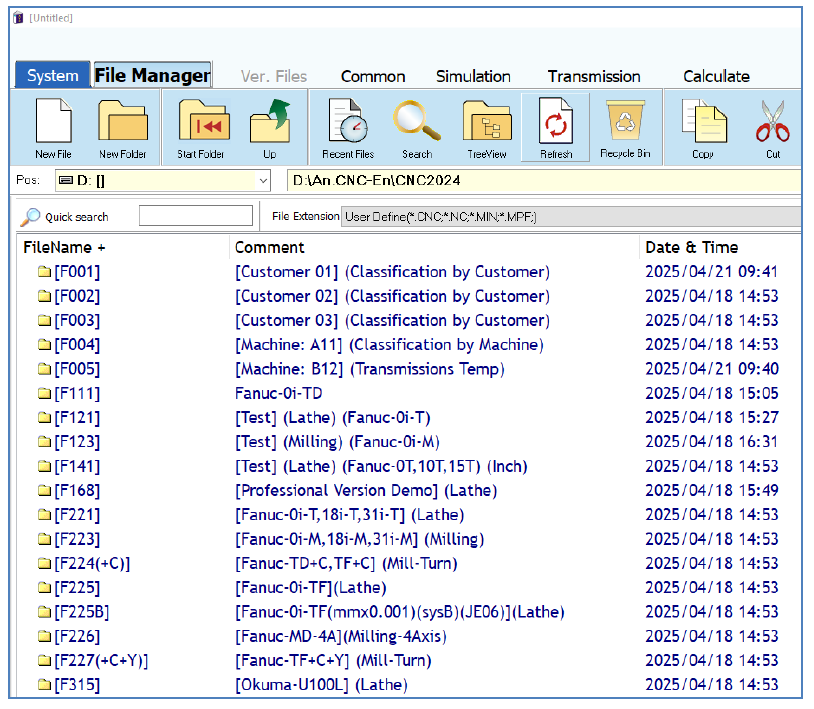
(5) The file list will display that the folder has been deleted.
3.10 Copy and Move
3.10.1 Copy
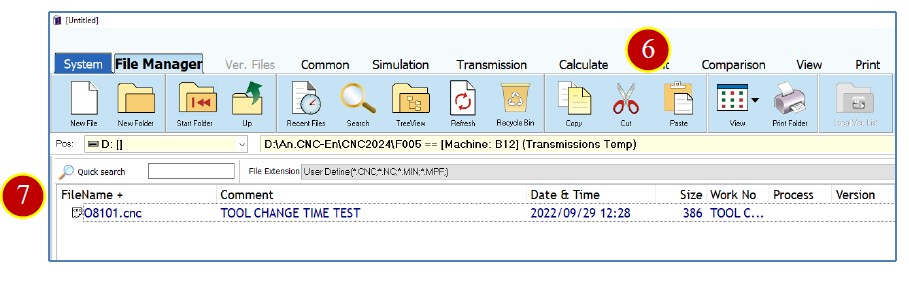
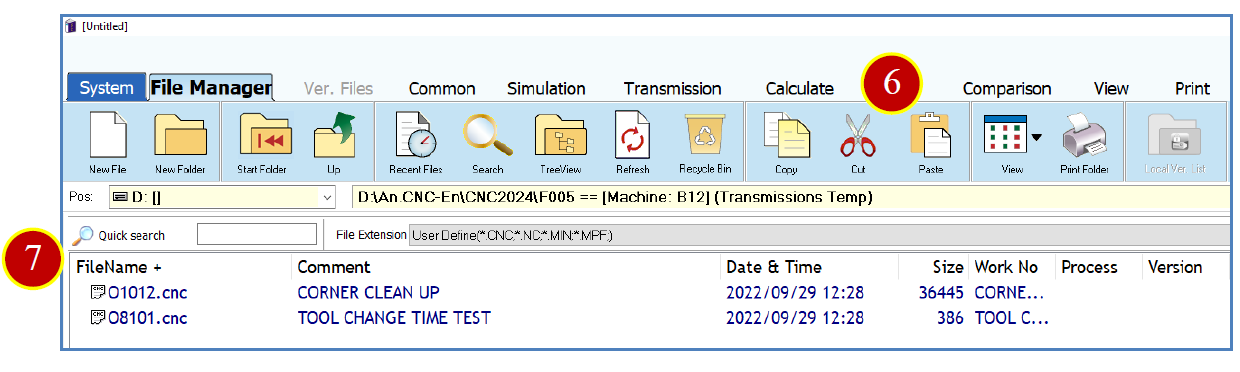
Example: Copy the F121 O8101.CNC file to the F005 folder.
(1) Click on the 【 File Manage r 】 tab.
(2) Double click 【 F121 】 to enter the folder.
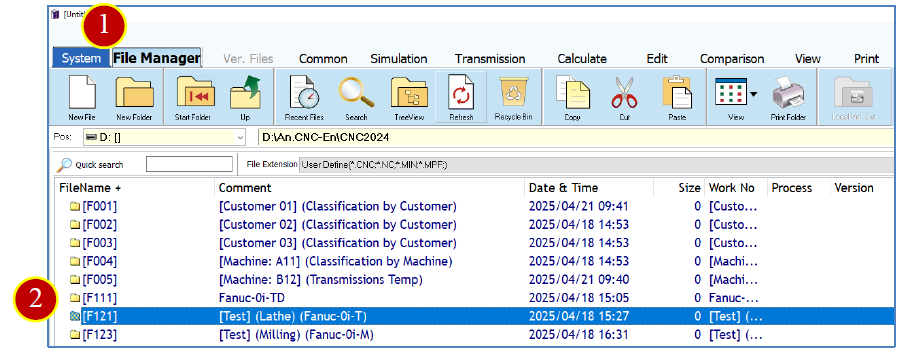
(3) Select the O8101.CNC file.
(4) Click on 【 Copy 】
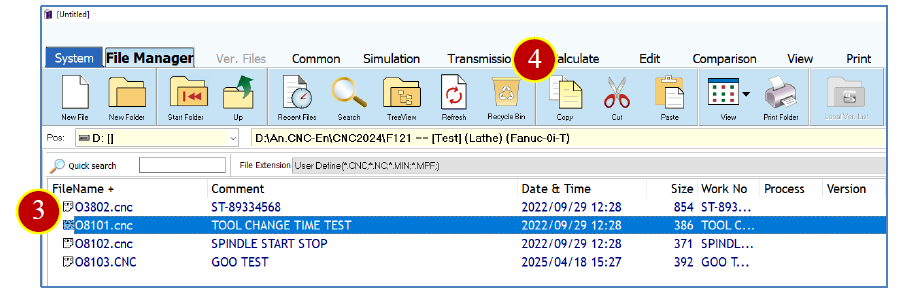
(5) Select the 【 F005 】 folder and enter it.
(6) Click on 【 Paste 】
(7) The file list will display the pasted file.
3.10.2 Move
Example: Move the F123 O1012.CNC file to the F005 folder.
(1) Click on the 【 File Manage r 】 tab.
(2) Double click 【 F123 】 to enter the folder.
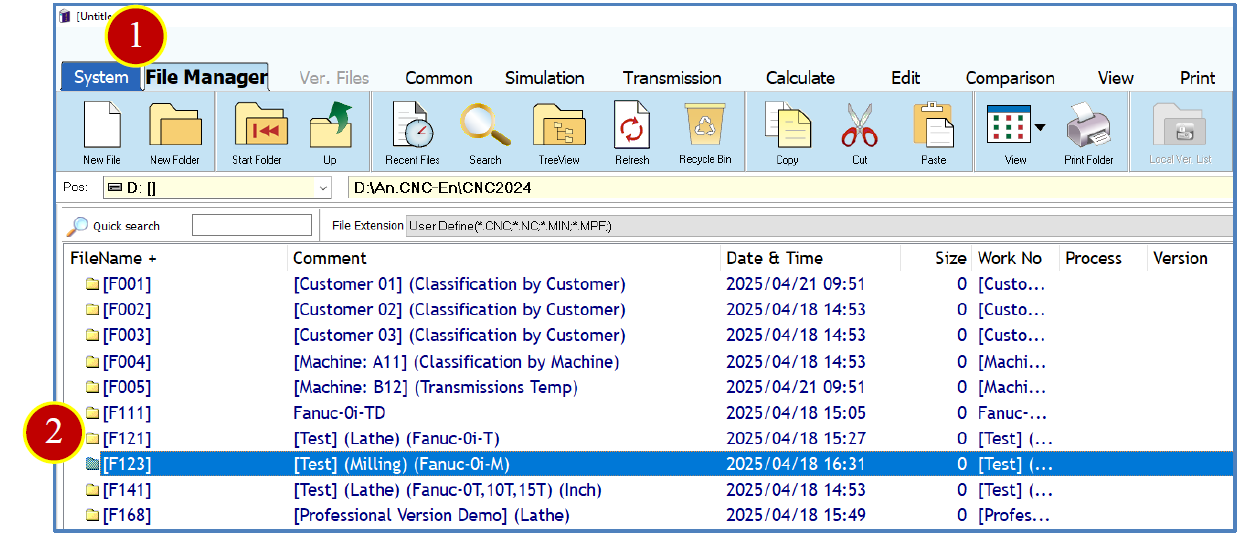
(3) Select the O1012.CNC file.
(4) Click on 【 Cut 】
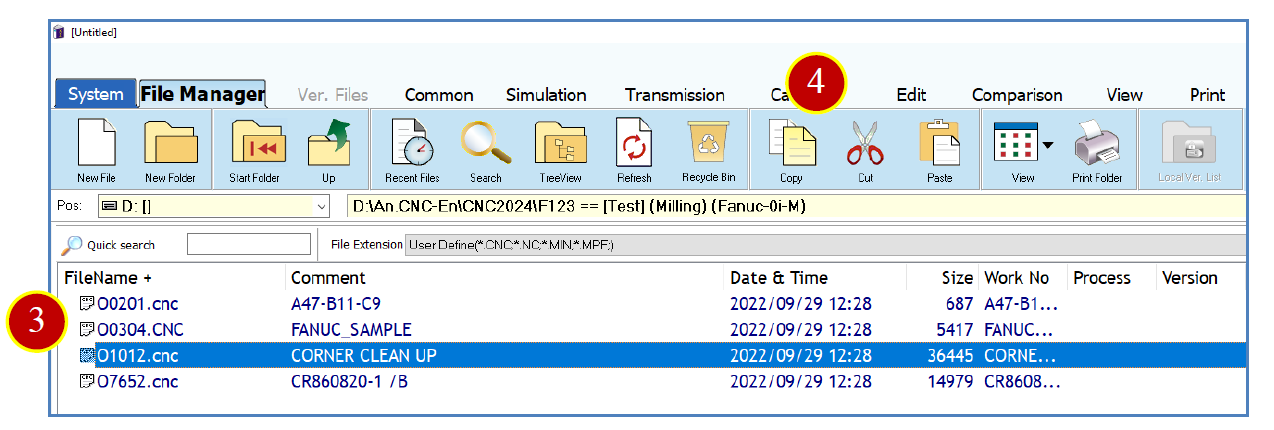
(5) Select the 【 F005 】 folder and enter it.
(6) Click on 【 Paste 】
(7) The file list will display the pasted file.
3.11 Merge Files
When you need to merge files and the file size is greater than 1MB, or when merging multiple files, you can use the merge files function to save time on file opening, copying, pasting, etc.
3.11.1 Merge Files
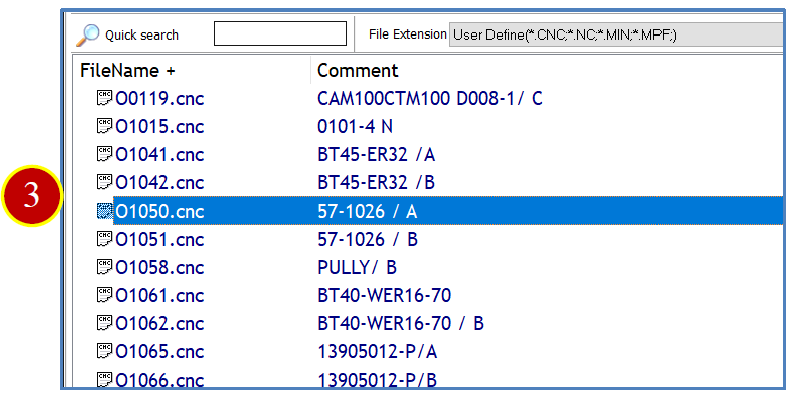
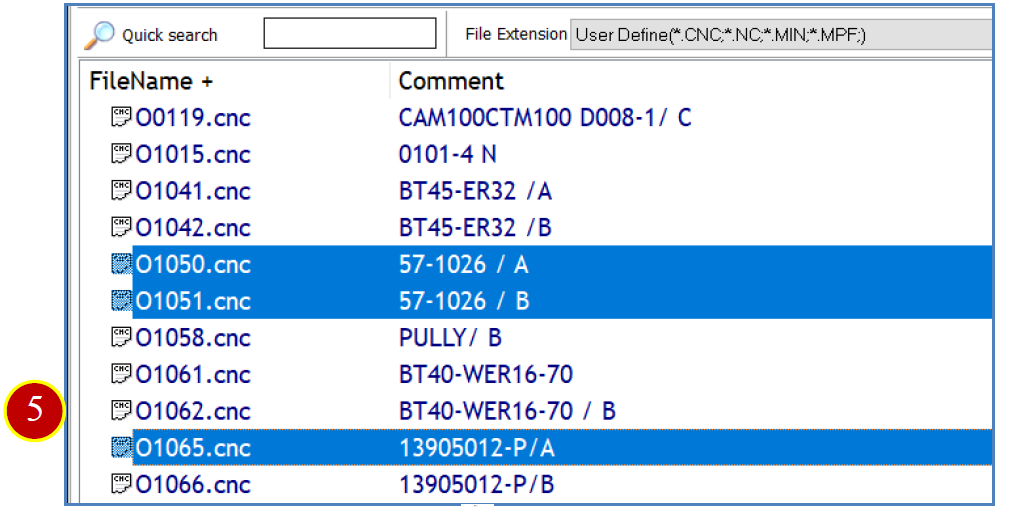
Example: Merge F168 O1050.CNC, O1051.CNC, and O1065.CNC.
(1) Click on the 【 File Manage r 】 tab.
(2) Double click 【 F168 】 to enter the folder.
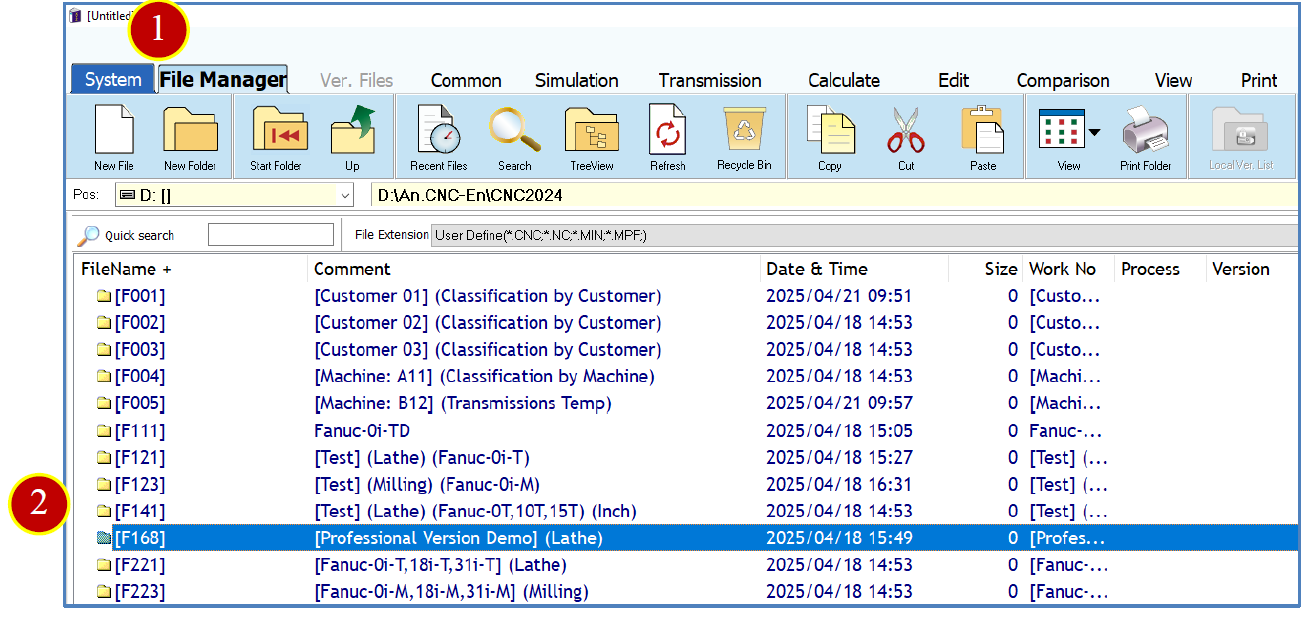
(3) Select O1050.CNC.
(4) Hold down the [Ctrl] key and select O1051.CNC.
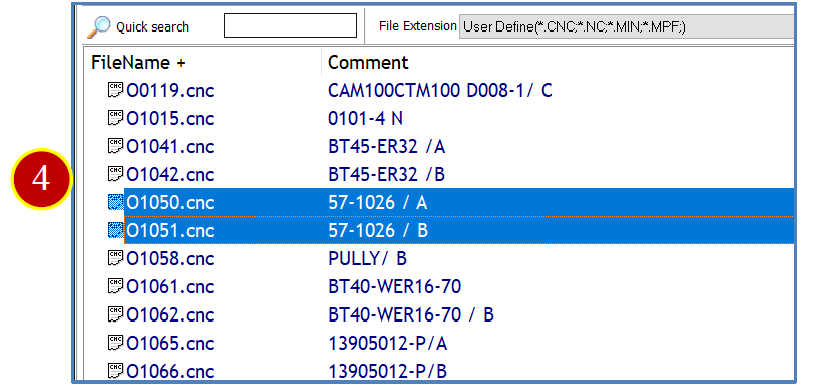
(5) Then select O1065.CNC.
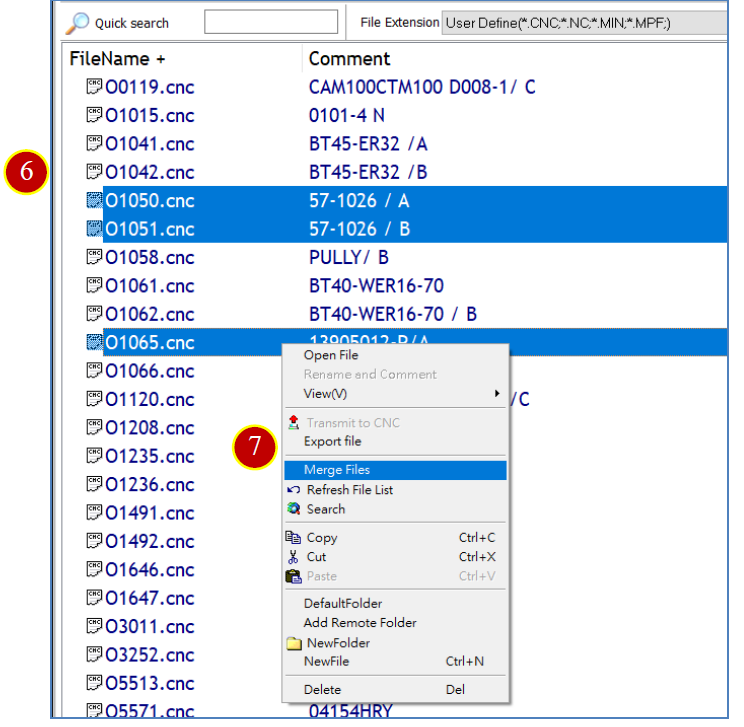
(6) Right click on the selected files.

(7) Click on 【 Merge Files 】
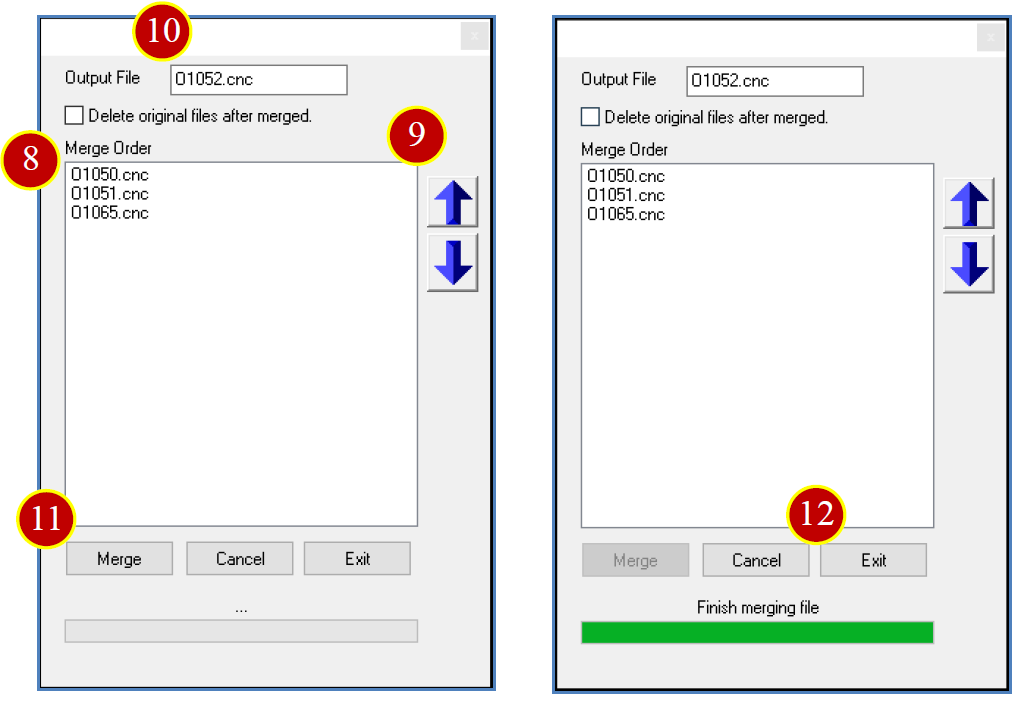
(8) In the merge order, select 【 O1050.CNC 】
(9) Use the arrow to change the merge order.
※ Moving to the top means the merged file will be at the beginning of the program.
(10) Enter the output file name as O1052.CNC.
(11) Click 【 Merge 】
(12) Click 【 Exit 】
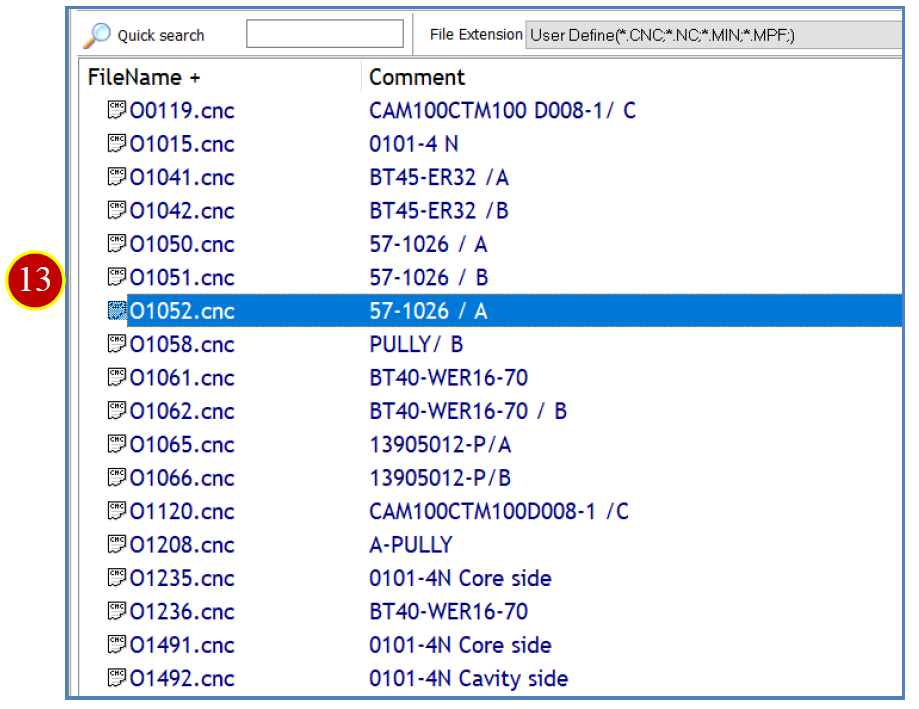
(13) The file list will display the merged file.
3.12 File Sorting and Storage Column Width
3.12.1 File Sorting
Example: Sort by comment.
(1) In the file list, click on 【 Comment 】
※ The system will automatically sort in ascending order, and the column header will display a “+”.
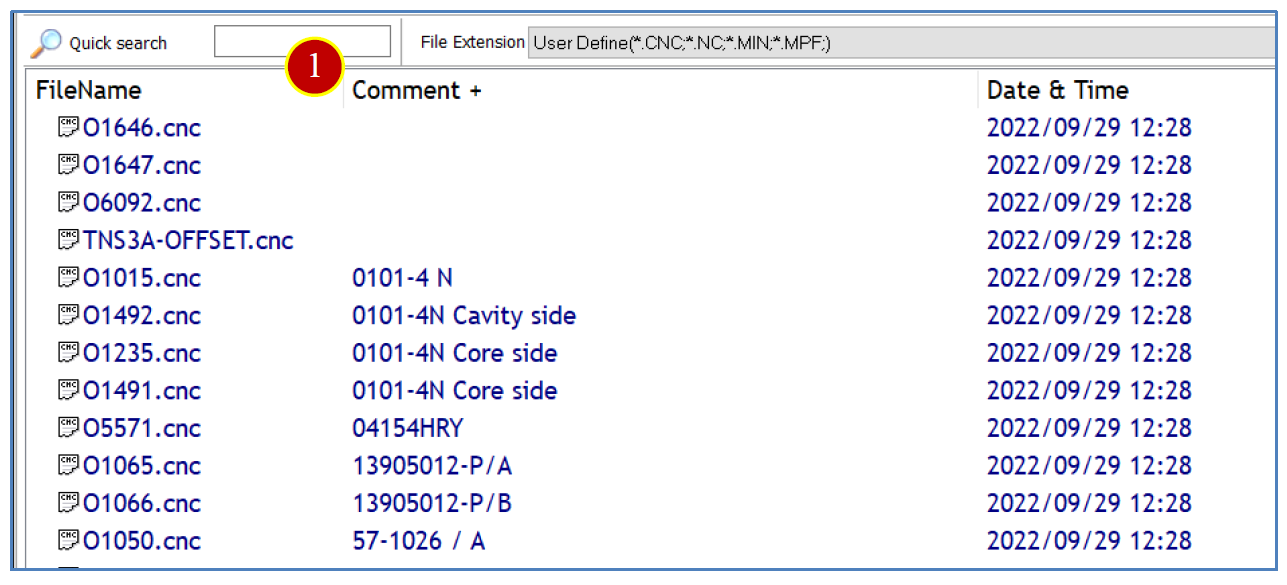
(2) Click on 【 Comment 】 again.
※ The system will switch to descending order, and the column header will display a “-”.
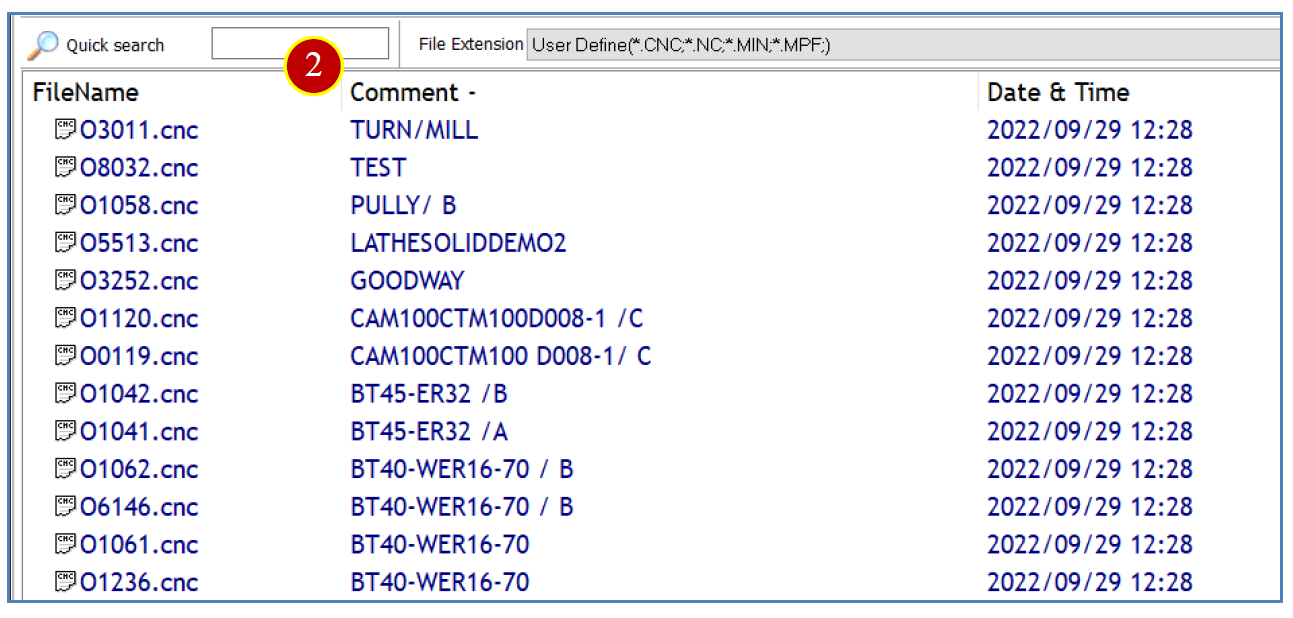
3.12.2 Adjust Column Width
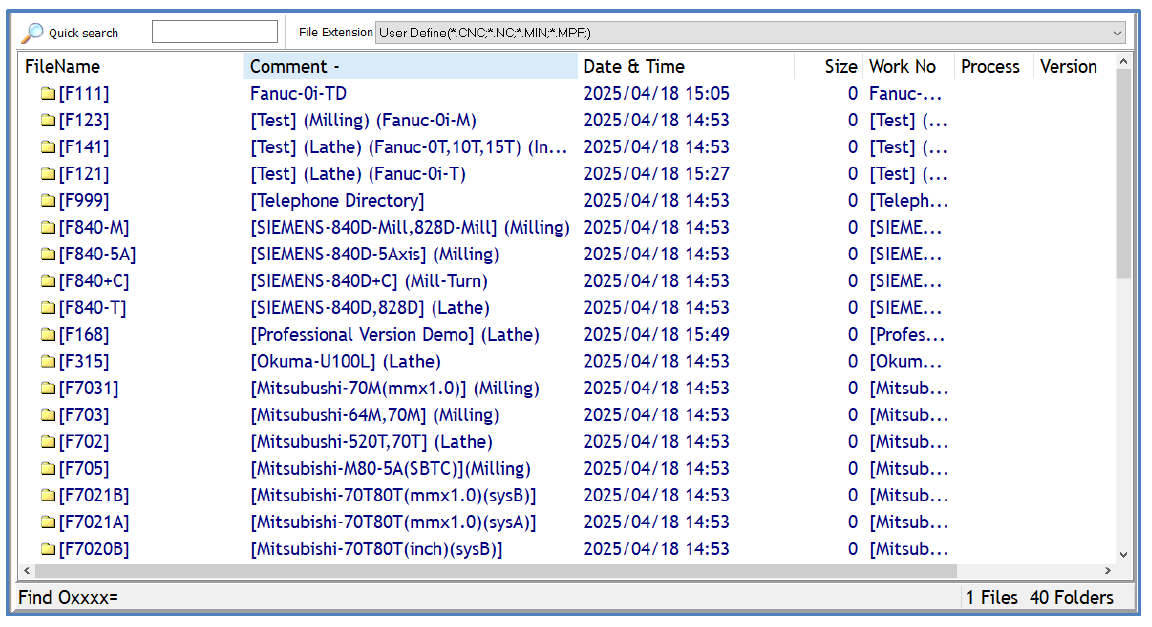
Once the column widths are adjusted, the software will automatically save the column widths, and you won’t need to adjust them the next time you open the software.
Example: Adjust the column widths fo r file name, comment, modification date, and character count.
(1) Hover the mouse pointer over the separator between the 【 Comment 】 and 【 Date & Time 】 columns, and the cursor will change to a "resize" icon.
(2) Hold down the left mouse button and drag left or right t o adjust to the desired width.
※ If the data description is too long and the column width is too short, causing the description to be incomplete, "..." will appear at the end.
文章區塊